
Apni Pathshala VED | Standard Operating Procedure
Document Control & Operational Metadata
1. Purpose & Scope
This Standard Operating Procedure (SOP) provides POD Leaders, Academic Coordinators, and Center Management staff with a comprehensive operational framework for managing student records within the Apni Pathshala VED ecosystem.
The instructions detailed in this document ensure accurate student onboarding, strict handling and encryption of Personally Identifiable Information (PII), systematic verification of identity credentials (KYC), seamless account synchronization with the Apni Prerna LMS learning portal, and standardized bulk data import/export procedures.
2. System Prerequisites & Access Path
Authorized personnel must follow these steps to access the student administration tools:
- Navigate to the VED Portal: Open a web browser and go to https://ved.apnipathshala.org/login.
- Authenticate Credentials: Sign in using authorized credentials (assigned POD Leader, Academic Coordinator, or Admin role).
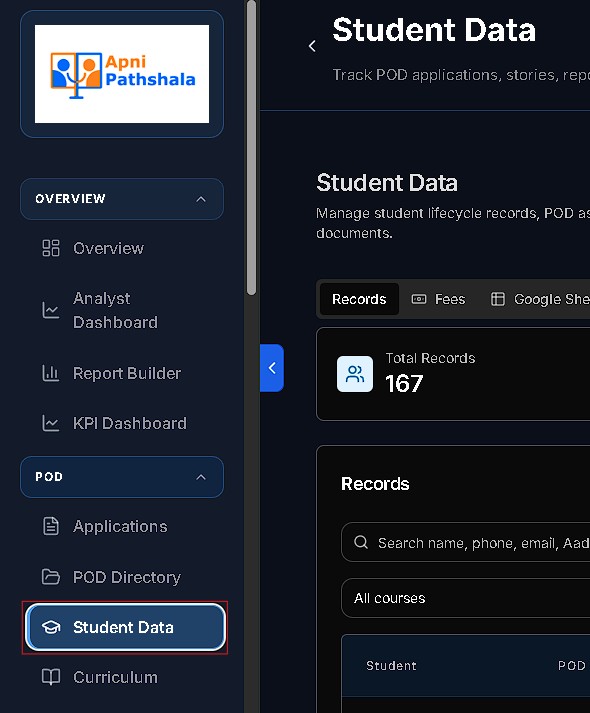
- Navigate to Student Module: Locate the Academic & Center Management section in the left navigation sidebar and click Students.
- Direct URL Route: https://ved.apnipathshala.org/app/students
3. Data Security & Record Classification Matrix
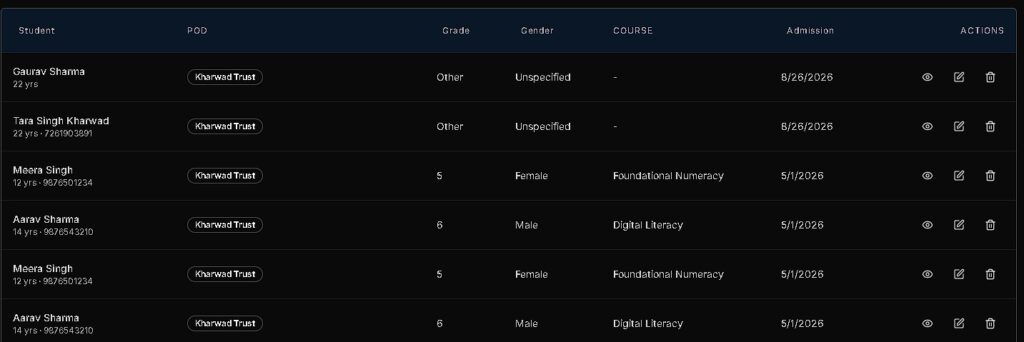
To maintain compliance with organizational privacy standards and data protection laws, all student profile fields managed within VED are classified by sensitivity tier, storage encryption rules, and mandatory verification thresholds.
| Data Category | Field Name | Sensitivity Level | Encryption & Storage Standard | Verification Requirement |
|---|---|---|---|---|
| Personal Identity | Full Name, Gender, Date of Birth | High | Standard Database Storage | Government ID / Birth Certificate |
| Sensitive PII | Aadhaar Card Number | Critical | AES-256 Encrypted at Rest | Original Aadhaar Card Inspection |
| Contact Details | Primary Phone Number, Guardian Email, Address | High | Standard Database Storage | OTP / Mobile Verification |
| Academic Profile | Grade, School Board, Current Course, Completed Courses | Medium | Standard Database Storage | Previous Marksheet / Enrollment Slip |
| System Credentials | Apni Prerna Portal Account & SSO Token | Critical | Hashed Passwords & Encrypted Tokens | Automated System Sync |
| KYC Documentation | Student Photo, Admission Form, ID Proof | High | Presigned S3 Object Storage | Verification Checklist Approval |
4. Operational Workflows
Workflow 1: New Student Registration & KYC Upload
Follow this procedure when enrolling a new learner at a POD or center location:
- Open Onboarding Form:
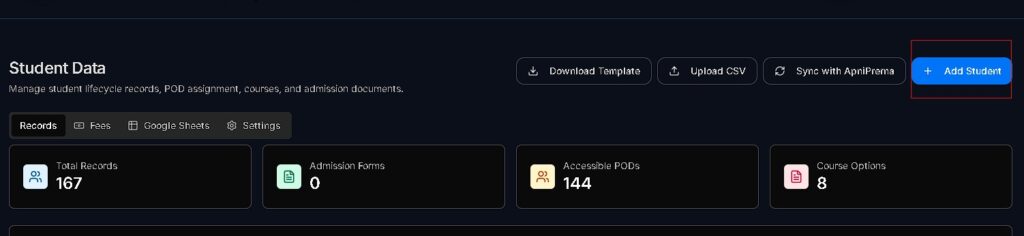
- Navigate to Students (/app/students).
- Click the + Register Student button located at the top right of the page.
- Input Personal Information:
- Full Name: Enter the student’s full official name as printed on legal identity documents.
- Gender: Select appropriate option (Female, Male, Non-binary, Prefer not to say, Other).
- Date of Birth: Enter date of birth in standard format.
- Contact Info: Provide a valid 10-digit mobile phone number, guardian email address, and current residential address.
- Input Academic & Course Profile:
- Grade: Select current school grade level.
- School Board: Choose board affiliation (e.g., State Board, CBSE, ICSE, NIOS).
- Current Course: Assign the initial course track batch from the active list.
- Input Sensitive Identity Information (KYC):
- Enter the 12-digit Aadhaar Card Number.
- Security Note: The platform automatically encrypts this field using AES-256 before saving to the database.
- Upload Verification Documentation:
- Attach scanned copies or clear photos of official identity proofs or completed admission forms.
- Supported Formats: PDF, JPEG, PNG, WEBP, DOCX.
- File Size Limit: Maximum 10MB per document.
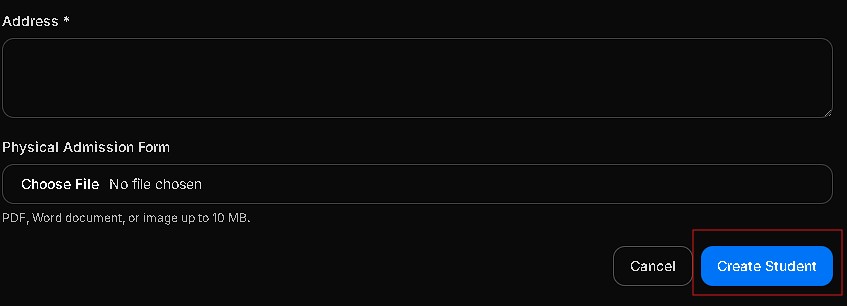
- Finalize Enrollment:
- Click Create Student Record. The system builds the student profile and issues a unique VED Student ID.
Workflow 2: Apni Prerna Portal Credential Sync & SSO Reset
Ensure students maintain uninterrupted access to digital learning modules on the Apni Prerna portal:
- Locate Student Record:
- Search for the student by name or VED Student ID in the Students database list.
- Click on the student row to expand the complete profile drawer.
- Provision LMS Account:
- Review the Apni Prerna Integration status card.
- If unlinked, click Provision Apni Prerna Account.
- The platform links the student to the active center location and generates Single Sign-On (SSO) credentials.
- Reset LMS Password:
- If a student loses access or forgets their password for the learning portal, click Regenerate LMS Password.
- Confirm the password reset action. A temporary password will be auto-generated and sent via SMS/email to the registered phone number/email.
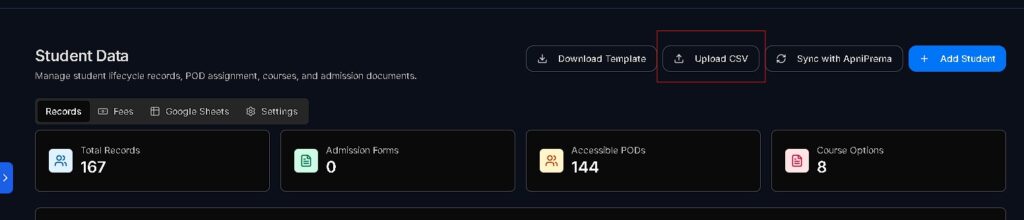
Workflow 3: Bulk Student Import & Data Export Operations
For batch onboarding during new academic terms or center rollouts:
- Access Import Interface:
- On the main Students list view, click Import Students (CSV).
- Download Official Template:
- Click Download Official Template to download the standard formatted file (STUDENT_IMPORT_TEMPLATE_CSV).
- Prepare CSV File Data:
Fill in the mandatory headers following exact formatting rules:- studentName (Text, Required)
- phoneNumber (10-digit numeric, Required)
- email (Valid Email)
- dateOfBirth (YYYY-MM-DD, Required)
- address (Text)
- grade (Standardized Grade string)
- schoolBoard (Standardized Board string)
- aadhaarCardNumber (12-digit numeric, Required)
- gender (Female | Male | Non-binary | Prefer not to say | Other)
- admissionDate (YYYY-MM-DD)
- currentCourse (Valid Course Name/ID)
- coursesCompleted (Comma-separated course codes)
- Validate & Upload:
- Drag and drop the completed CSV file into the importer drop zone.
- Click Preview & Validate Rows. Review validation flags (e.g., duplicate Aadhaar numbers or missing mandatory fields).
- Click Execute Import to populate student profiles into VED.
- Export Student Data:
- Authorized administrators can click Export Records (CSV/Excel) to extract filtered student rosters for offline attendance registers, auditing, or operational reporting.
5. Best Practices & Compliance Guidelines
- Strict Data Confidentiality: Never export or transmit unencrypted Aadhaar numbers or contact details via unapproved communication channels.
- Timely KYC Verification: Complete identity document cross-checks within 48 hours of student registration.
- Accurate Track Allocation: Update student course statuses immediately upon module completion or course transfers to maintain clean attendance and LMS performance logs.
- Duplicate Record Prevention: Always search the existing student roster using phone number or Aadhaar before registering a new profile.
Need Help?
- Use the “Request Support Call” button in the top-right of the form.
- Contact your POD Admin for assistance.


