Skip to content
Picture of ApniPathshala Logo Primary
  • Start A Pod
  • Pods
  • Apna PC
  • What We Do
    • Stories
    • Comics
    • Courses
  • Blogs
  • Start A Pod
  • Pods
  • Apna PC
  • What We Do
    • Stories
    • Comics
    • Courses
  • Blogs
What’s new
View all updates
Picture of ApniPathshala Logo Primary
What’s new
View all updates

Search

cancel

Notifications

  • Collaboration with NCSM
  • Read, How a small POD is changing lives
  • Read, Pros and Cons of Homeschooling
  • Read, Microschooling a new way to learn

Suggestions

Non - Profit PODs
Apna PC
POD Manual
How to start a POD?
What is a POD?
Mumbai
Delhi
What is a Microschool?
Instagram
Apply to open a POD

Follow Us:

Facebook X-twitter Youtube Instagram Phone-alt Envelope

Need Help?

  • How to Apply for a POD
  • What is Apni Pathshala?
  • Understanding the Incubation Phase
  • Weekly Responsibilities During Incubation
  • Monthly Responsibilities During Incubation
Picture of ApniPathshala Logo Primary
cancel
  • Home
  • Start A Pod
  • Pods
  • Apna PC
  • Blog
  • Comics
  • Courses
  • Dr. Malpani’s Insights
  • Student Stories
  • About Us
  • Contact Us
  • Home
  • Start A Pod
  • Pods
  • Apna PC
  • Blog
  • Comics
  • Courses
  • Dr. Malpani’s Insights
  • Student Stories
  • About Us
  • Contact Us
Facebook X-twitter Youtube Instagram Phone-alt Icon-email1

POD Operating Manual

Getting Started

2
  • How to Apply for a POD
  • What is Apni Pathshala?

POD Operations for POD Leaders

21
  • Configure Innovative Teaching Methods in Apni Pathshala PMS
  • Submit Student Success Stories Using Apni Pathshala PMS
  • How to upload weekly report on PMS
  • Skill Development Cluster
  •  Employment Cluster – Definition Structure
  • Digital Literacy Cluster – Definition Structure
  • Academic Empowerment Cluster Definition Structure
  • One-Year POD Standard (Aligned to AP Phases 0–3)  
  • Post-KYC Meeting with the POD
  • SOP: Software Testing Before POD Launch
  • SOP for New POD Applications (Complete, Priority-Arranged)
  • Curriculum Assessment & Design for PODs
  • Shipment, Delivery & PC Setup Guide
  • How to Raise a Hardware Complaint
  • Red Flags and Corrective Actions
  • Usefull Tools and Templates
  • Final Evaluation of Incubation
  • Core Evaluation Criteria
  • Monthly Responsibilities During Incubation
  • Understanding the Incubation Phase
  • Weekly Responsibilities During Incubation

ApniPrerna

5
  • Deleting Old or Unused User Accounts
  • Deleting Unwanted Applications
  • How to Create Student Login Credentials in Apni Prerna
  • How to Install Apni Prerna Software on a Windows PC
  • SOP: Installation of Apni Prerna on Linux PCs 
View Categories

SOP: Installation of Apni Prerna on Linux PCs 

1. Purpose

This SOP explains the step-by-step process for installing Apni prerna on Linux PCs using the installation command provided.


2. Pre-Requisites

Before starting, ensure:

  • The Linux PC is powered on.
  • A stable internet connection is available.
  • You have the installation link/command provided by the central team.
  • Use administrator access on the system.

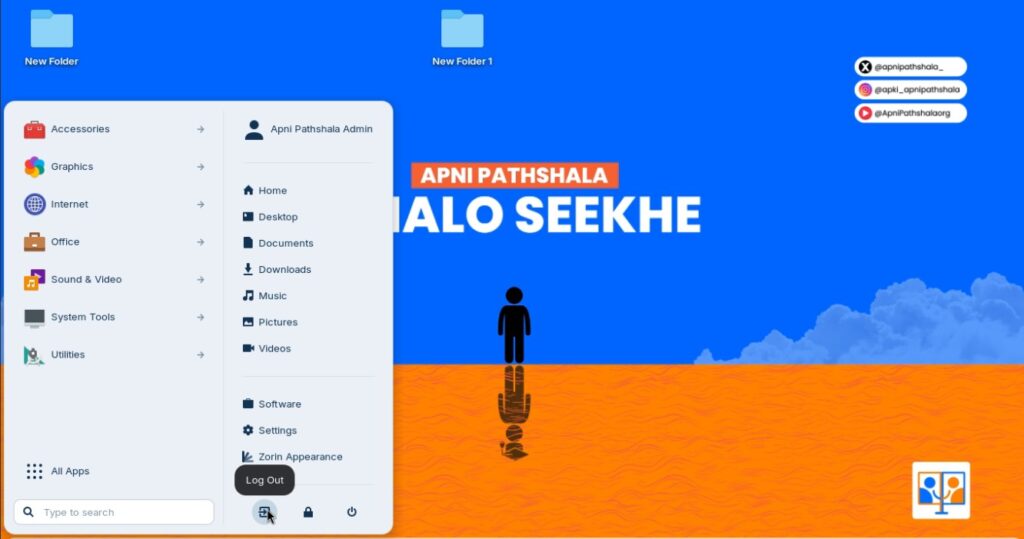
Step 1: Logout from Student Account

  • If you are currently logged into the AP_student account, click on the Logout button.
  • Wait until the login screen appears.

Step 2: Log in as Admin

  • On the login screen, select Apni pathshala admin


  • Enter the following credentials:

    Password: @pathshala@1947
  • Click Login.

Step 3: Number Your PCs

Assign a number to each PC using stickers or masking tape. Example: PC 1, PC 2, PC 3…. Write the number clearly on the CPU or monitor.

Step 4: Find the Serial Number for Each PC

For each PC:

  1. Turn it ON and wait for it to fully start.
  2. Open the Terminal on the Linux PC.
  3. Shortcut: Press Ctrl + Alt + T
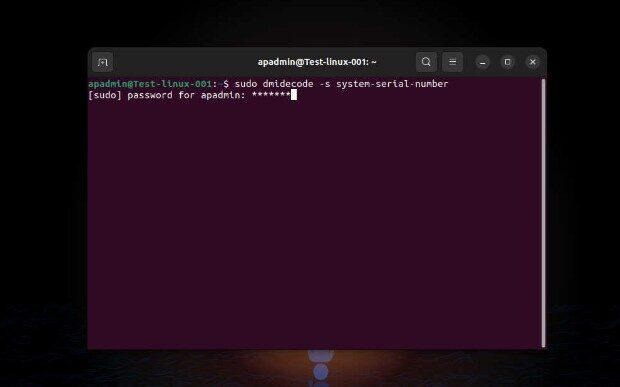
  4. Type the following command and press Enter:

sudo dmidecode -s system-serial-number

  1. Then type an admin password
  1. The system will show the Serial Number.
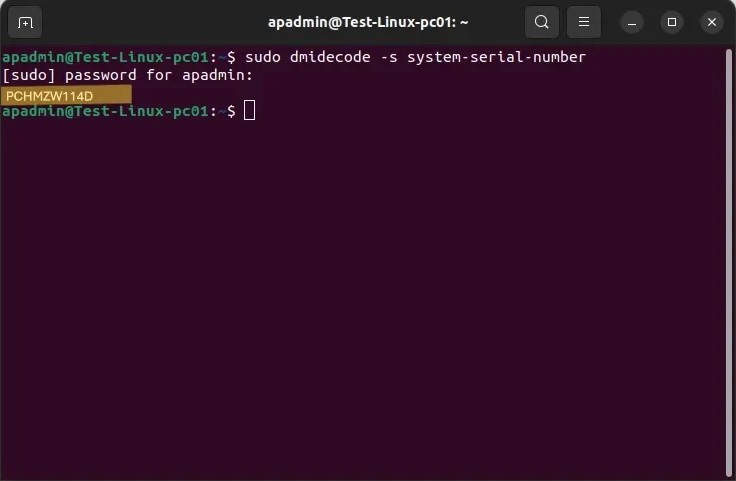
6. Note it down along with the PC number.

Step 5: Create and Share an Excel Sheet

1. Open Google Sheets or Excel

2. Make 2 columns: PC Number and Serial Number

3. Save and share this sheet with the ApniPathshala team on WhatsApp or email.

Mail ID: [email protected]

PC NumberSerial Number
PC 1ABC1234567
PC 2XYZ9876543
……

The AP Tech Team will share a script or download link

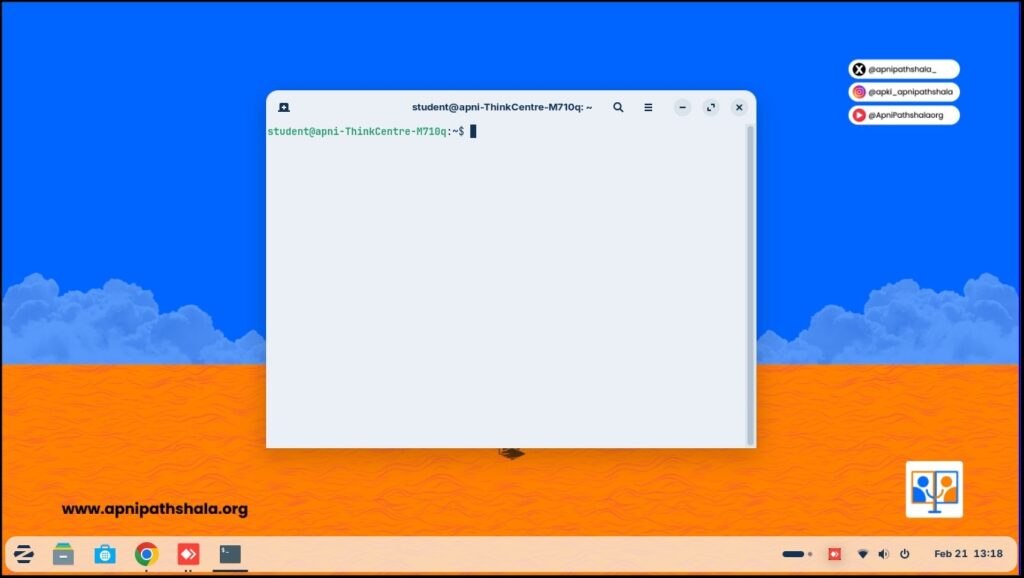
Step 1: Open the Terminal (Command Line)

Method 1: Using Keyboard Shortcut

  • Press Ctrl + Alt + T
    → The Terminal window will open.

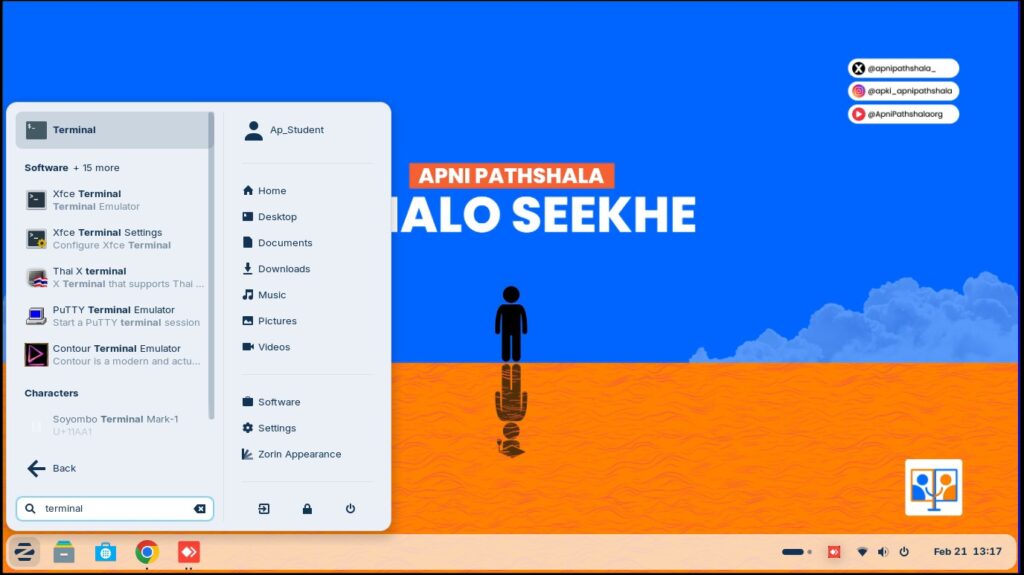
Method 2: Using Application Menu

  • Click on Applications (or Show Apps).
  • Search for Terminal.
  • Click on Terminal to open it.

You should now see a black window with a blinking cursor. This is the command line interface.

 Step 2: Copy the Installation Command

  • Open the message/email where the installation command was shared.
  • Select the full command carefully.
  • Right-click → Copy
    OR
  • Press Ctrl + C to copy.

Make sure the entire command is copied correctly (no missing characters).


Step 3: Paste the Command in Terminal

  • Go to the open Terminal window.
  • Right-click inside the terminal → Click Paste
    OR
  • Press Ctrl + Shift + V (Paste shortcut in Linux terminal).

The command should now appear in the terminal window.
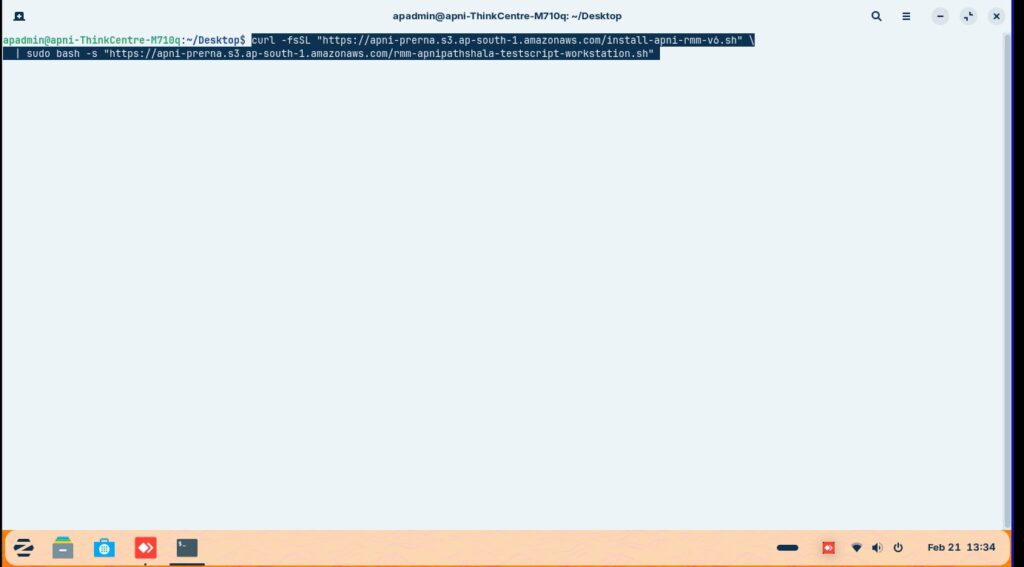

Step 4: Execute the Command

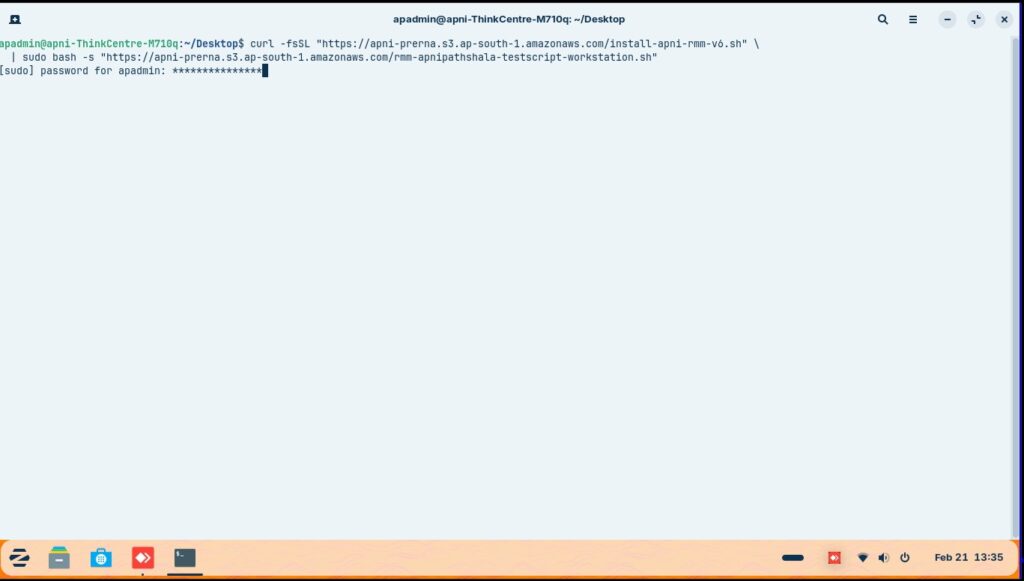
  • After pasting the command,
  • Press Enter on the keyboard.

The installation process will begin.

Step 5: Provide  Password (If Asked)

If the system asks:

password for username:

  • Type the system password.
  • Password: Admin@123
  • Press Enter.

Note:

  • While typing the password, nothing will be visible (no stars or dots). This is normal.
  • Just type carefully and press Enter.

Step 6: Wait for Installation to Complete

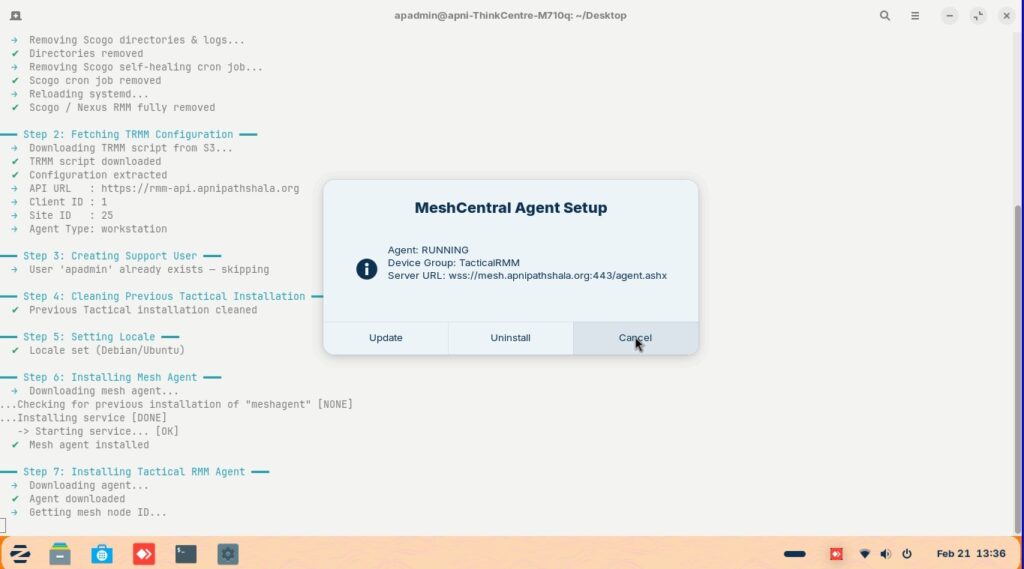
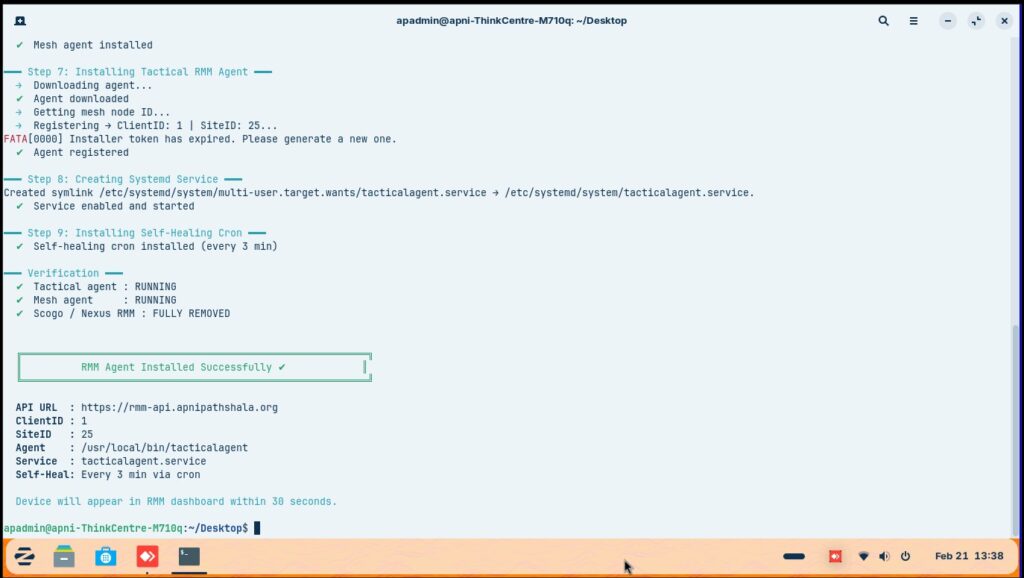
  • The system will download and install TRMM.
  • Do not close the terminal during installation.
  • Wait until you see a message such as:
    • Installation complete
    • Setup successful
    • Process finished

Press cancel


Step 7: Verify Installation

After installation completes:

  • Check if TRMM appears in:
    • Applications menu
How good did it answered your questions?

Share This Article :

  • Facebook
  • X
  • LinkedIn
  • Pinterest
Still stuck? How can we help?

Still stuck? How can we help?

Updated on May 4, 2026
How to Install Apni Prerna Software on a Windows PCDeleting Old or Unused User Accounts

Start Small.

Change Everything.

Open a POD in your area and light up young minds.

Start a POD
Talk To Us
Picture of ApniPathshala Logo Primary

ApniPathshala supports community leaders, parents, and educators in creating and running local learning centres or microschools by providing the guidance, resources, and ecosystem needed for sustainable, community-driven education.

Quick Links

  • POM (POD Operation Manual)
  • Blogs
  • About Us
  • Contact Us
  • Comics
  • Social Media
  • Terms & Conditions
  • Volunteering
  • Vacancies
  • POM (POD Operation Manual)
  • Blogs
  • About Us
  • Contact Us
  • Comics
  • Social Media
  • Terms & Conditions
  • Volunteering
  • Vacancies

Get our newsletter

2 mails every week. No spam.

Facebook Linkedin X-twitter Youtube Instagram Phone-alt Envelope

Founded by:

Dr.Aniruddha Malpani

Copyright © 2025 APNIPATHSHALA. All rights reserved.