
Purpose
This SOP provides Pod Owners with simple, step-by-step instructions to delete old or unused user accounts from Pod PCs without affecting essential accounts.
What You Need
– Access to the Pod Leader account (with admin rights)
– List of accounts to be removed
– Basic computer access
Step 1: Open File Explorer
1. Login to the Pod Leader account.
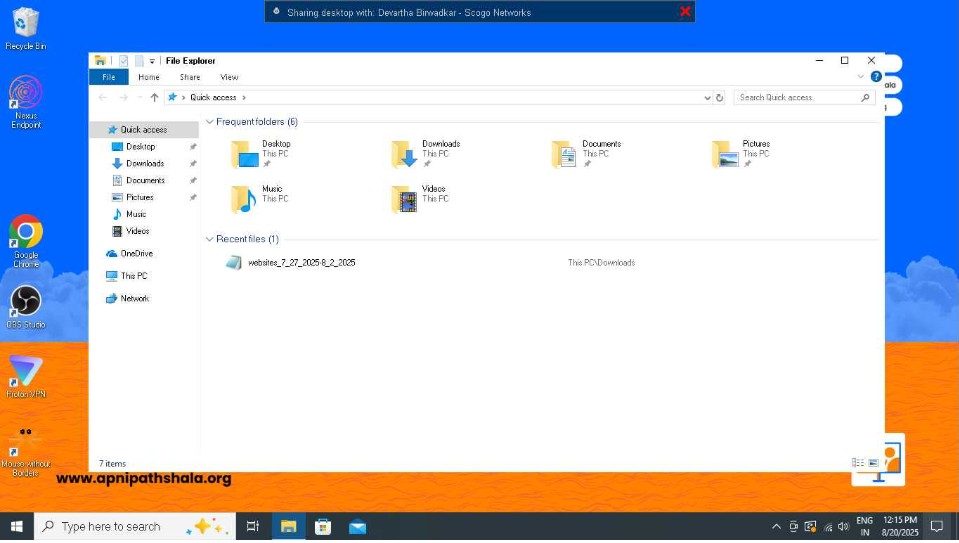
2. Open File Explorer from the taskbar or desktop.
You will see the folders and drives.
Step 2: Open Manage Option
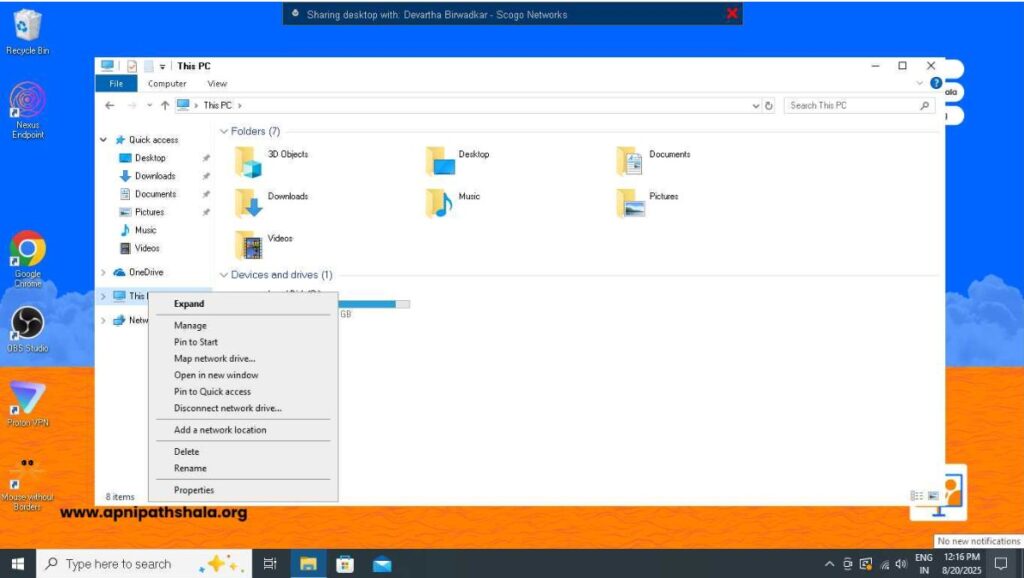
1. Right-click on ‘This PC’ from the left panel.
2. Select the ‘Manage’ option to open Computer Management.
Step 3: Open Local Users and Groups
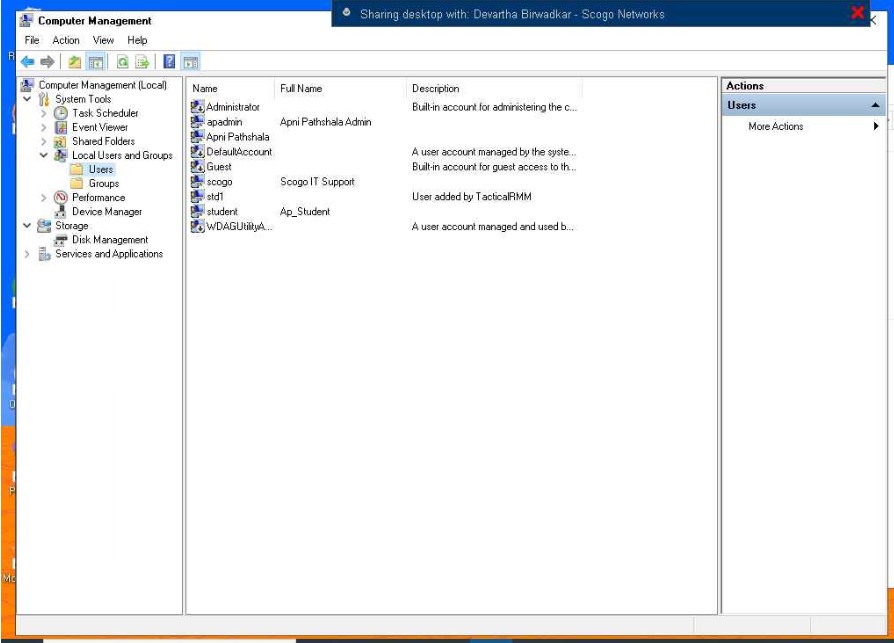
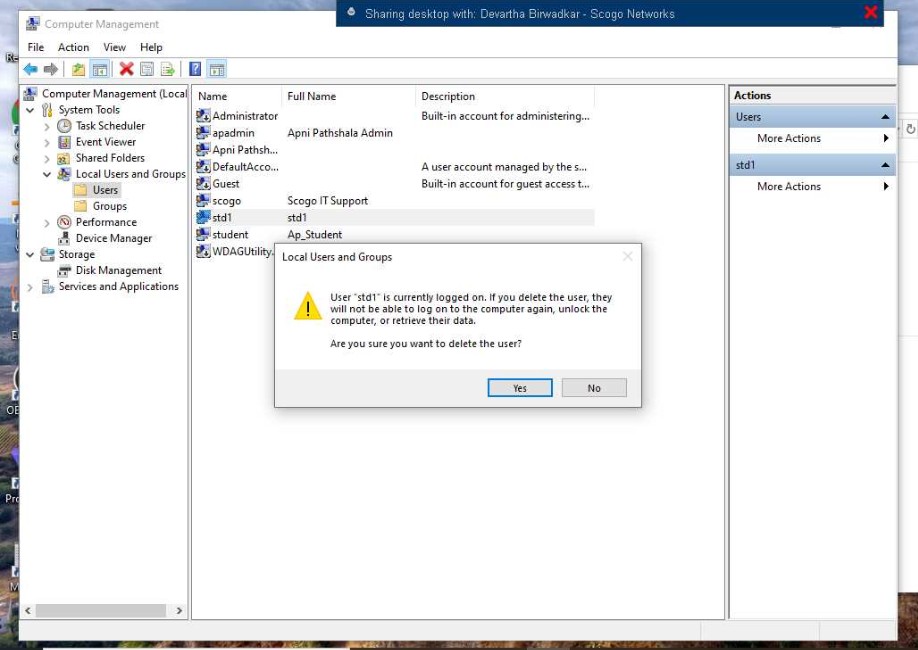
1. In the Computer Management window, expand ‘Local Users and Groups’.
2. Click on ‘Users’ to see the list of all accounts on this PC.
Step 4: Select User to Delete
1. From the list, carefully find the account you want to remove.
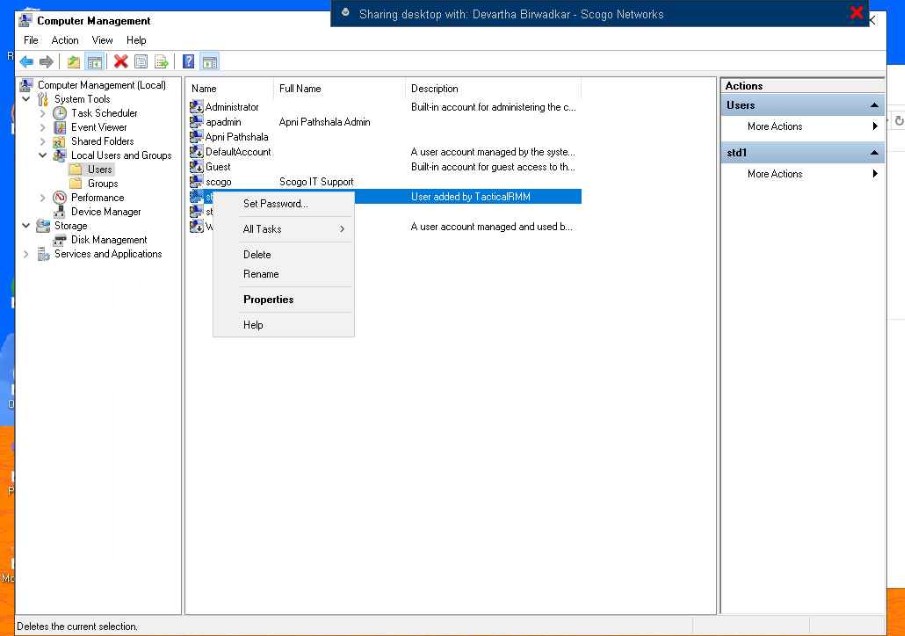
2. Right-click on the account (example: std1).
Step 5: Delete User
1. After right-clicking the unwanted account, click ‘Delete’.
2. A confirmation message will appear, click ‘Yes’.
3. The account will be permanently removed from the PC.
Rules & Restrictions
– Do NOT delete the following accounts:
* AP Student (default account for all students
* Apni Pathshala Admin
– Delete only duplicate or inactive accounts.
– Always double-check the username before deleting.
– Restart the PC after deleting accounts to confirm removal.


