
Purpose:
To help pod owners organise their PCs, collect serial numbers, and install the Nexus Endpoint Software so Apni Pathshala can manage and monitor the computers remotely.
What You Need:
– All pod PCs ready
– Internet connection
– A mobile phone with WhatsApp
– A pen and paper or Excel on mobile/laptop
– Basic computer access (no special skills needed)
Step-by-Step Instructions
Step 1: Number Your PCs
Assign a number to each PC using stickers or masking tape. Example: PC 1, PC 2, PC 3…. Write the number clearly on the CPU or monitor.
Step 2: Find the Serial Number for Each PC
For each PC:
1. Turn it ON and wait for it to fully start.
2. Press the Windows Key on the keyboard.
3. Type “cmd” → Right-click on Command Prompt → Click “Run as administrator”
4. If asked: “Do you want to allow this app to make changes?” → Click Yes
5. In the black screen, type:
wmic csproduct
6. Press Enter. The PC’s Serial Number will appear.
7. Note this serial number next to that PC’s number. Repeat for all PCs.
Step 3: Create and Share an Excel Sheet
1. Open Google Sheets or Excel
2. Make 2 columns: PC Number and Serial Number
3. Save and share this sheet with the ApniPathshala team on WhatsApp or mail.
Mail ID: [email protected]
| PC Number | Serial Number |
| PC 1 | ABC1234567 |
| PC 2 | XYZ9876543 |
| … | … |
Step 1: Wait for the Download App
Step 2: Receive the Apni Prerna file
- Apni Pathshala team will send one installation file
- Do not install any other file except the file sent by the team.
Step 3: Download the file on the computer
- Open the message where the file is sent.
- Click Download.
- Wait until download is finished.

Step 4: Find the downloaded file
- Open File Explorer (folder icon).
- Click Downloads.
- You will see the trmm file there.
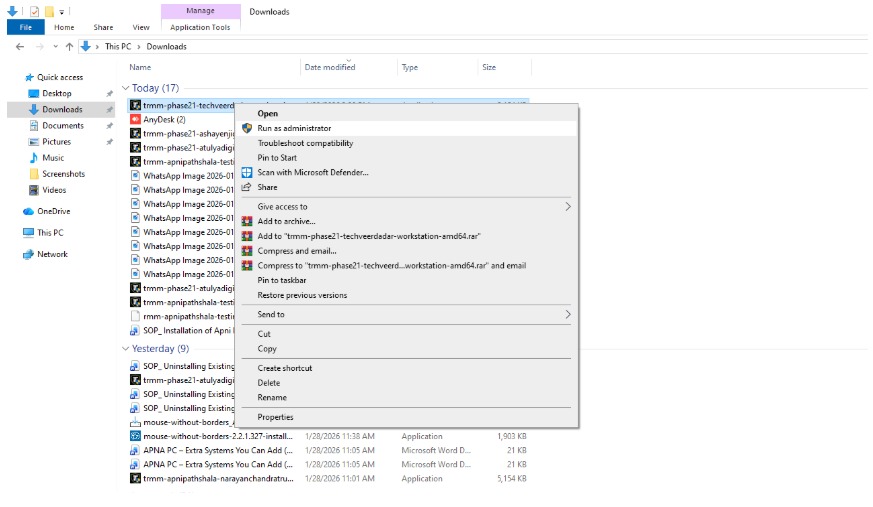
Step 5: Start installation (Important)
- Right-click on the trmm file.
- Click Run as administrator.
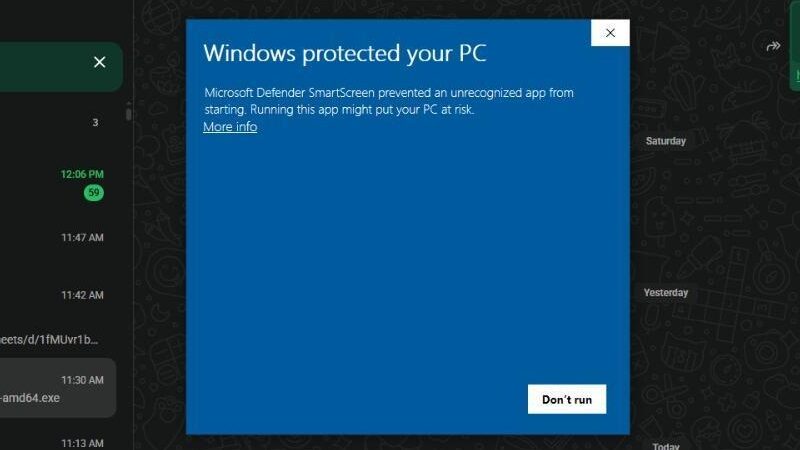
- Click on more info
- If it asks permission, click Yes.
Then ,
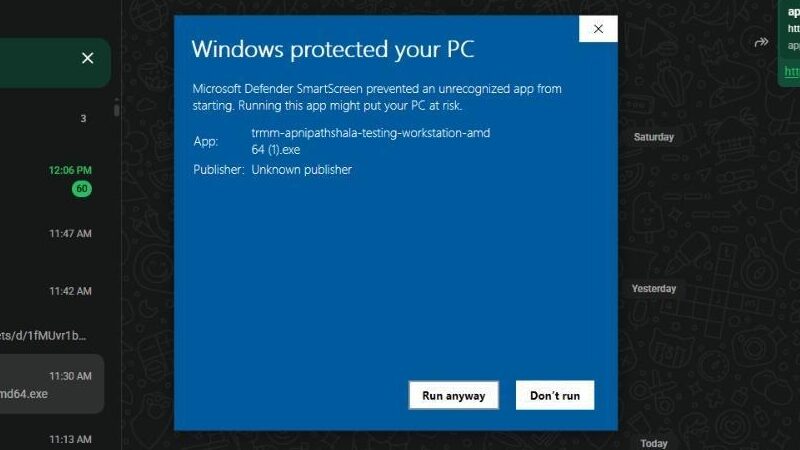
5. Click on run anyway
Step 6: Complete installation
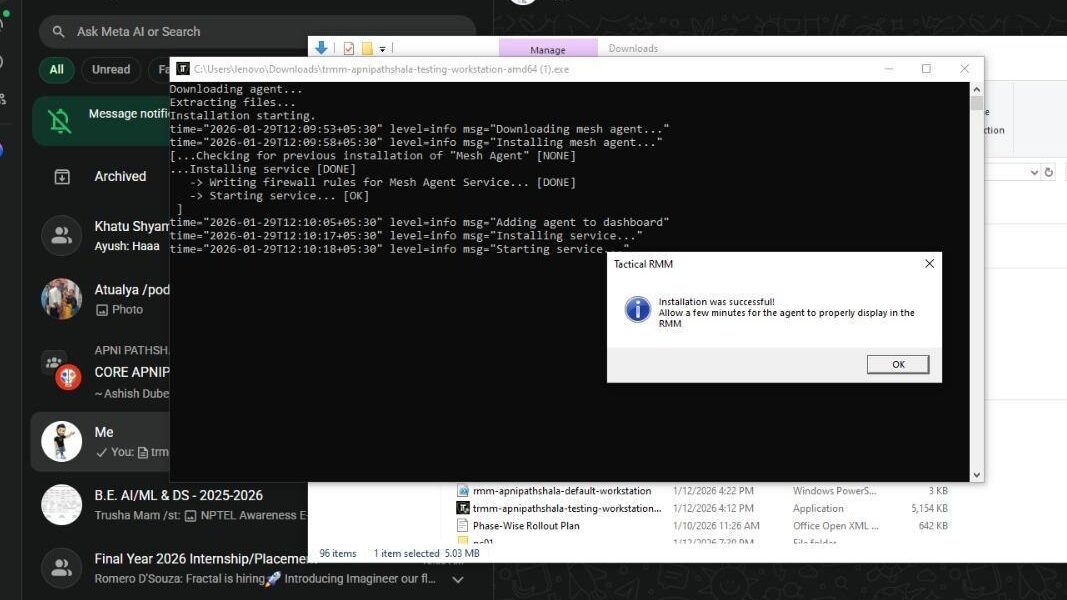
- Wait (do not switch off the PC)
- Click OK
Step 7: After installation (Wait 2 minutes)
- Keep internet ON.
- Wait 2 minutes so the software connects properly.
Step 8: Final message in WhatsApp group
After installing on all PCs, send:
“ installed on all PCs in [POD Name]. Total PCs: [X].”


