
1. Purpose
This SOP explains the step-by-step process for a POD Leader to create a new student account in the Apni Prerna Student Safety System so that the student can receive login credentials and access the platform.
2. Who Should Use This SOP
This SOP is for:
- POD Leaders
- Authorized center admins who are responsible for creating student accounts
3. System Used
- Platform Name: Apni Prerna
- Module Used: Students
- Purpose: Create student profile and generate login credentials
4. Before You Start
Before creating a student account, keep the following details ready:
- Student first name
- Student last name
- Learning Center name
- Standard/Class
- Student age
- Student email ID (Optional, but recommended)
- Parent contact number (optional but useful)
Important:
If the student’s email is added correctly, the student can receive account-related details on Gmail.
Step-by-Step Process
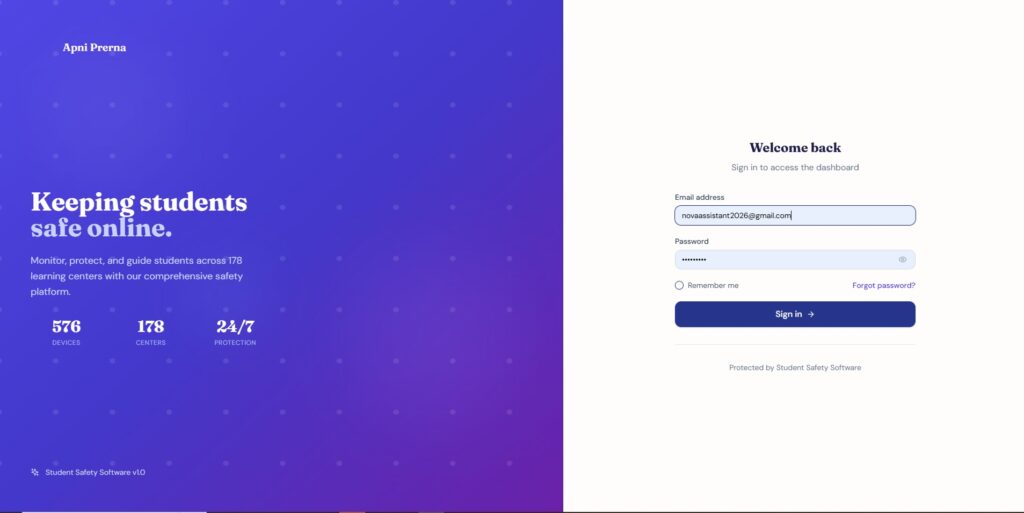
Step 1: Log in to Apni Prerna
- Open the Apni Prerna login page.
- Enter your registered email address.
- Enter your password.
- Click on Sign in.
Outcome:
You will enter the Apni Prerna dashboard.
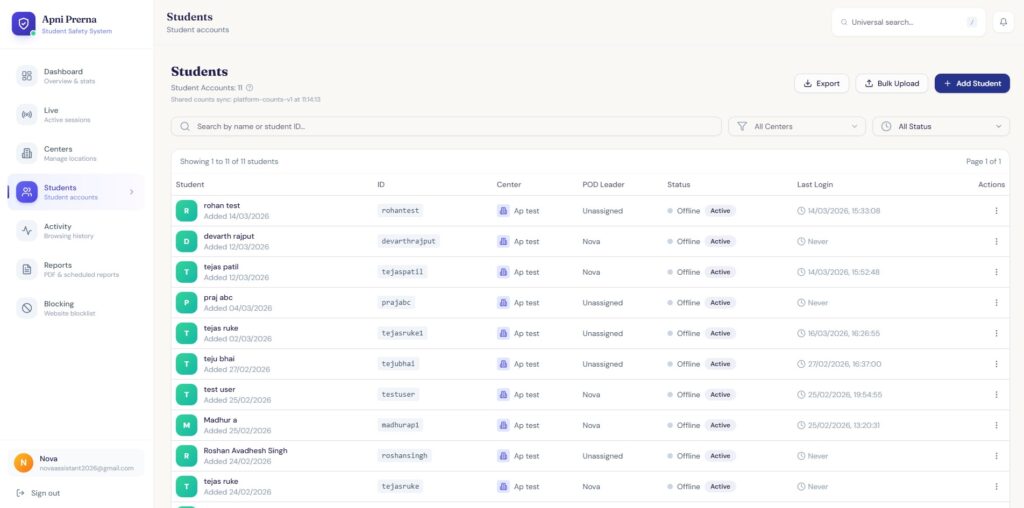
Step 2: Open the Students Section
- From the left-side menu, click on Students.
- This will open the Student accounts page.
- Here, you can view all previously created students.
Outcome:
You will see the student list and the Add Student button on the top-right side.
Step 3:Choose How You Want to Add Students
You have two options:
- Add Student → To add an individual student
- Bulk Upload → To add multiple students at once
Option A: Add Individual Student
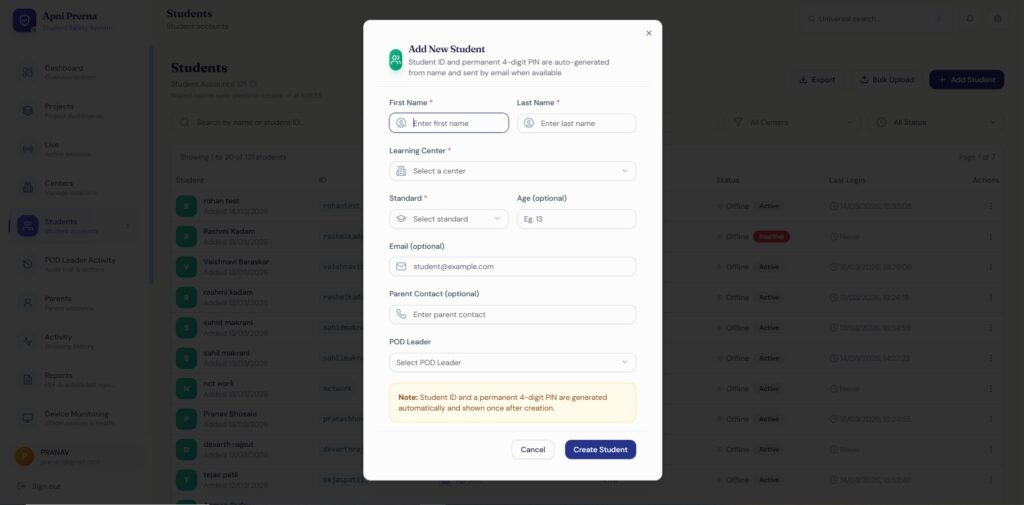
Step 4: Click on “Add Student”
- Click the Add Student button
- A popup form titled Add New Student will open
Step 5: Fill in Student Details
Required Fields:
- First Name
- Last Name
- Standard
- Age
- Parent Contact
Step 6: Verify All Details Carefully
Check:
- Name spelling is correct
- Correct learning center is selected
- Correct class is selected
- Email ID is correct
- Parent contact is correct
Why this matters:
Incorrect email = credentials may not be received.
Step 7: Create the Student Account
- Click on Create Student
- Wait for processing
Outcome:
Student account is created.
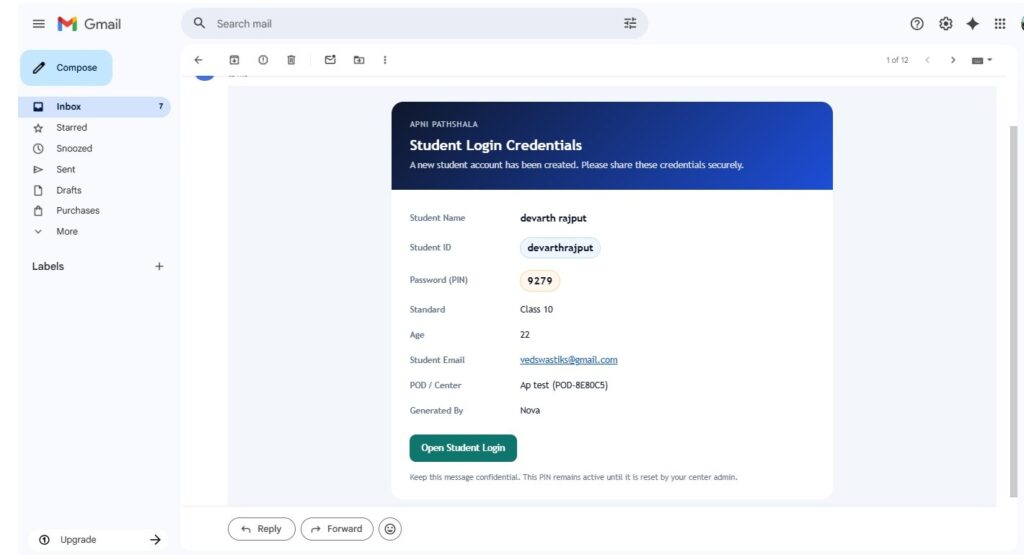
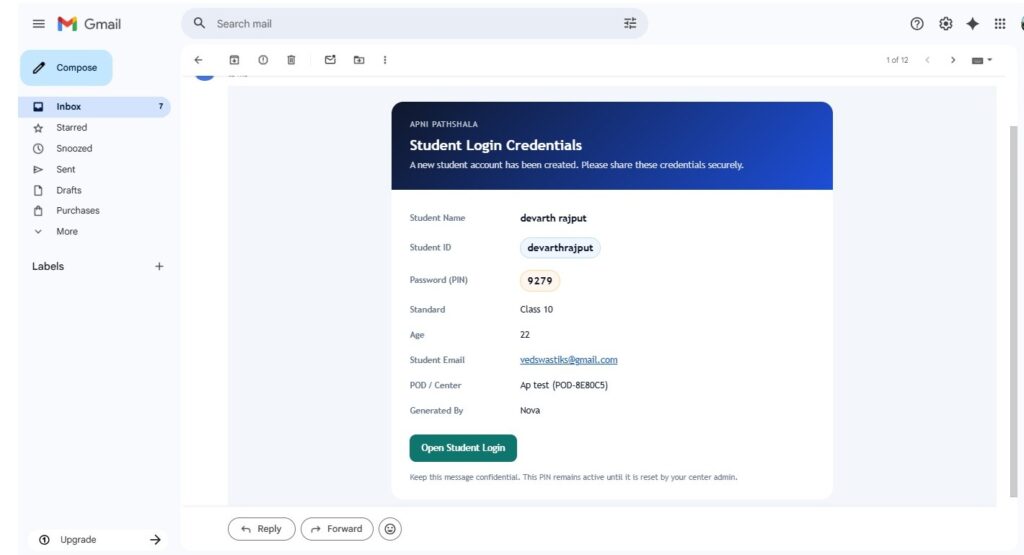
Step 8: Check Gmail for Credentials
- Open Gmail
- Check for email
- Look for login details
Important:
Student ID and PIN/password are shared via email.
Step 9: Share Credentials with Student
- Share Student ID
- Share PIN/Password
- Instruct student to keep it safe
Step 10: Confirm Account Creation
Go back to Students page and verify:
- Student appears in list
- Student ID is visible
- Status shows Active
Option B: Bulk Upload (Multiple Students)
Step 4A: Click on “Bulk Upload”
- On the Students page, click Bulk Upload
Outcome:
Bulk upload interface opens.
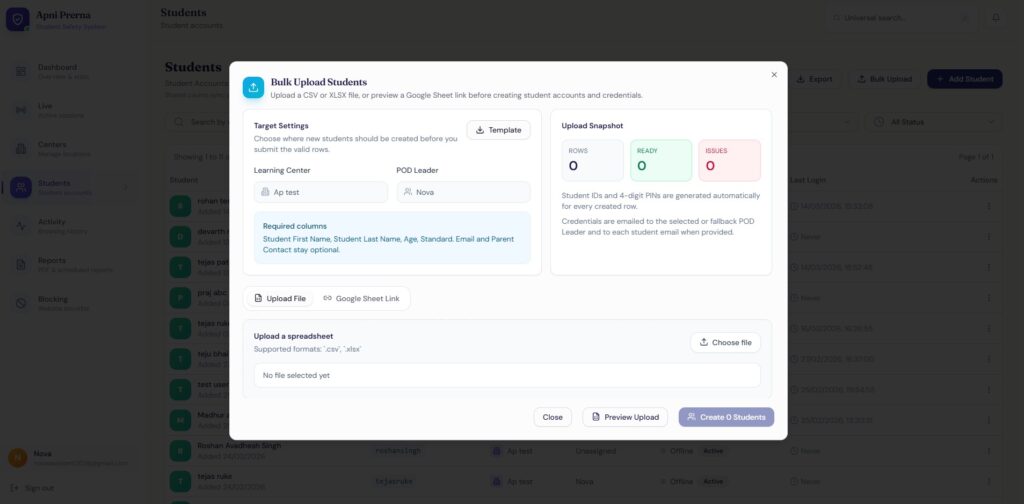
Step 4B: Prepare the Upload File
- Download template
Required Columns:
- First Name
- Last Name
- Learning Center
Standard
- Age
- Parent Contact
Important:
Follow the correct format and column names.
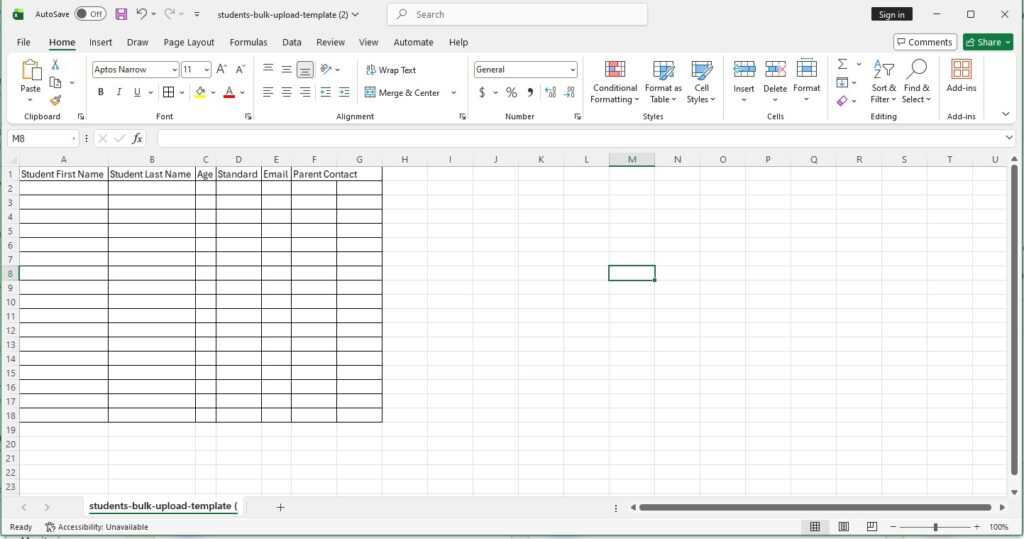
Step 4C: Fill the Bulk Upload Template
After downloading the template, fill it in as follows:
Column-wise Instructions:
- Student First Name → Enter the student’s first name
- Student Last Name → Enter the student’s last name
- Age → Enter the student’s age
- Standard → Enter the student’s class/standard (e.g., 7, 8, 9)
- Email → Enter the student’s Gmail ID (recommended for receiving login credentials)
- Parent Contact → Enter a valid 10-digit mobile number
After entering all student details:Save the File
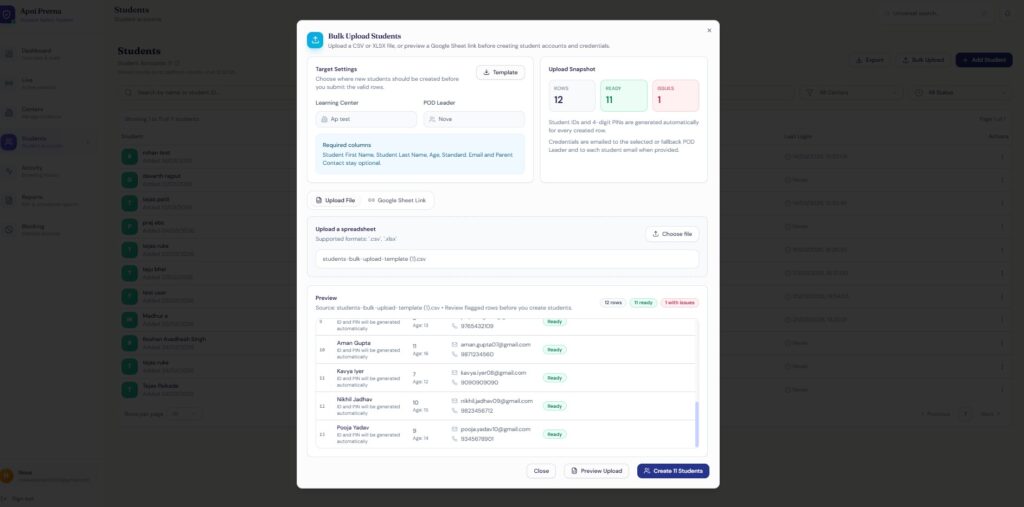
Step 4D: Upload the File
- Click →Choose File
- Select your Excel/CSV file
- Click Upload
Click Preview, upload and Create Students
After uploading the file:
- Click on Preview Upload
- Review the student data shown in the preview and click on create student
Step 4E: Credential Sharing (Bulk Upload)
- Students receive credentials via email (if email added)
- POD Leader may also receive details
Expected Final Output
After completing the process:
- Student accounts are created (single or bulk)
- Student IDs are generated automatically
- 4-digit PIN/password is generated
- Login details are shared via email
- Students appear in the list with Active status


