
Purpose
To help Pod Leaders remove unnecessary software from PCs without affecting essential programs.
What You Need
– Access to the Pod Leader account (with admin rights)
– List of applications that are safe to remove
– Basic computer access
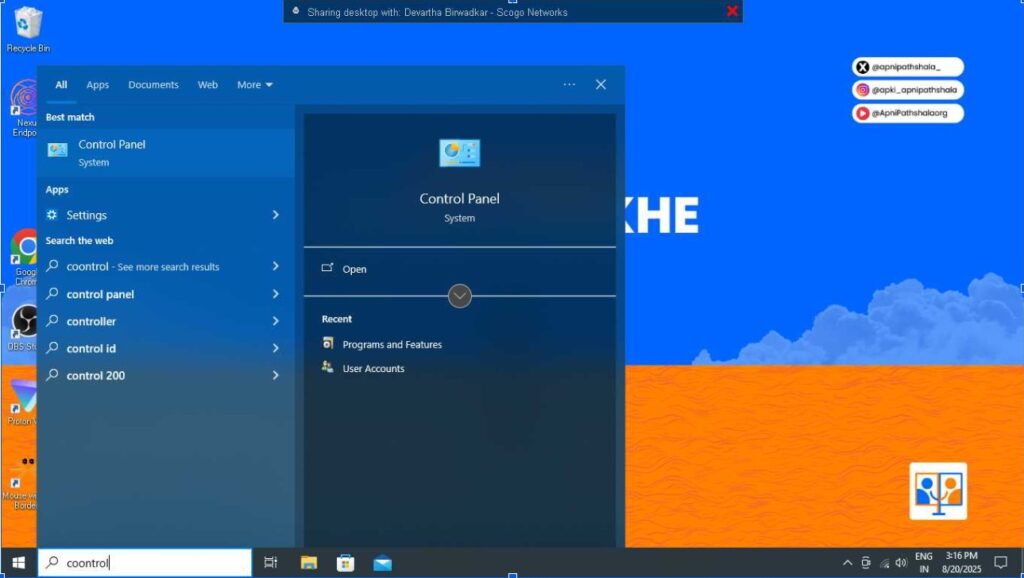
Step 1: Open Control Panel
1. Press the Windows Key on your keyboard.
2. Type ‘Control Panel’ and press Enter.
3. The Control Panel window will open.
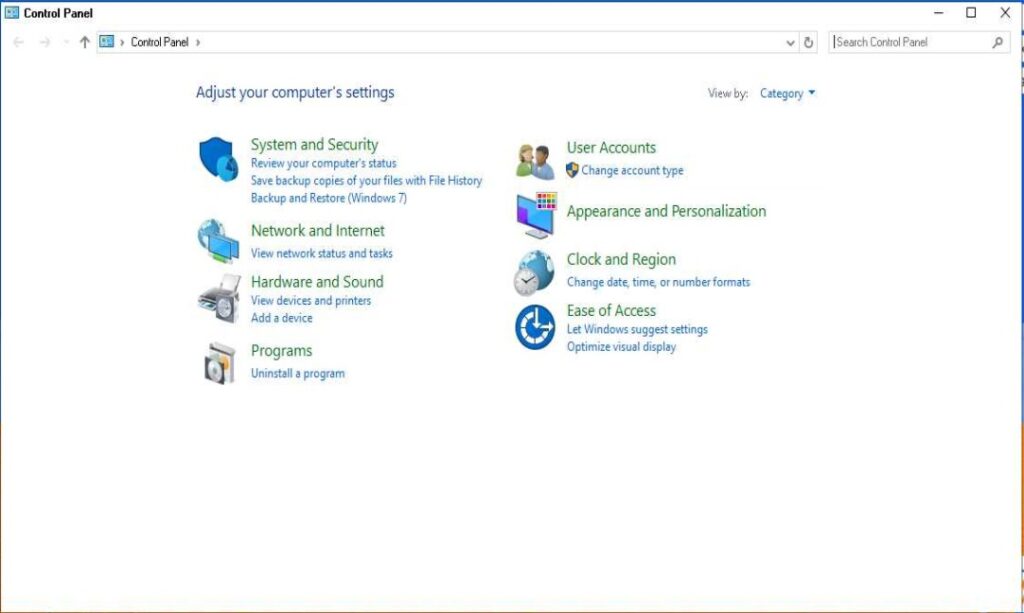
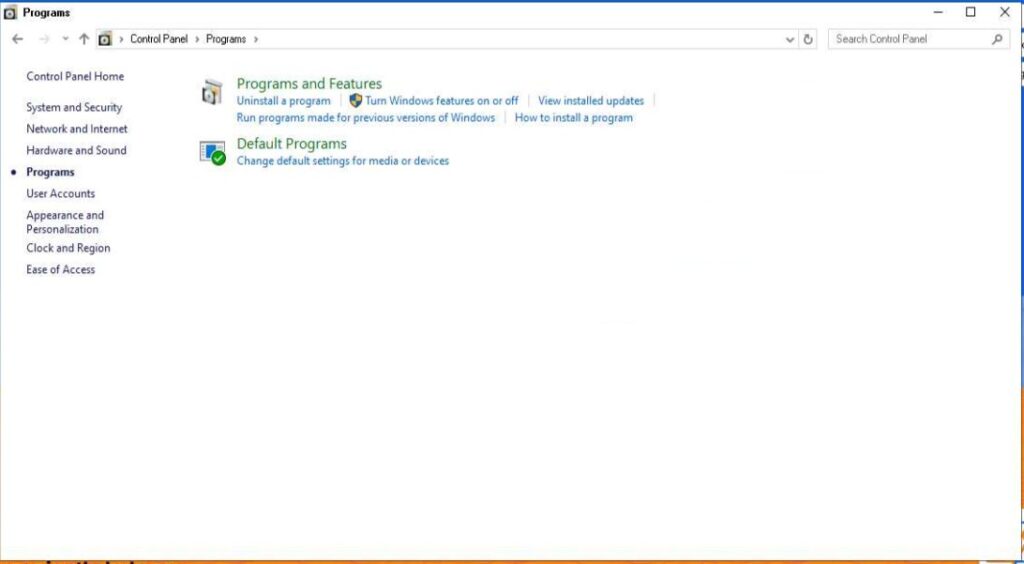
Step 2: Go to Programs and Features
1. Inside Control Panel, click on ‘Programs’.
2. Then click on ‘Programs and Features’.
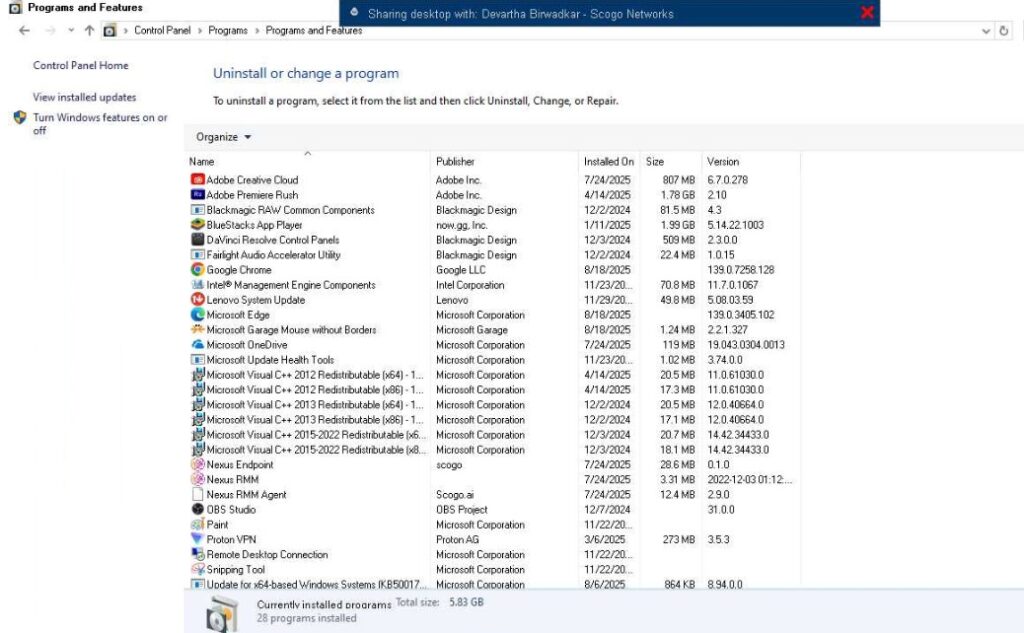
– This will show the list of all installed applications.
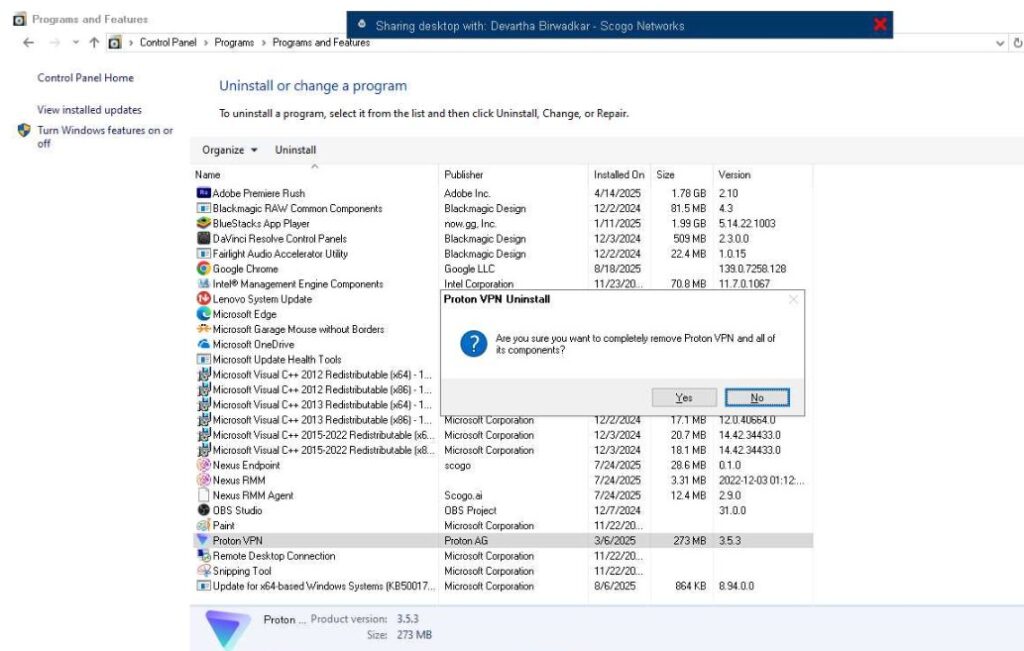
Step 3: Select the Application
1. Scroll through the list and find the application you want to remove.
2. Be careful to select only unnecessary apps (do not delete system apps or Apni Pathshala-related apps).
Step 4: Uninstall the Application
1. Click on the application name.
2. At the top, click ‘Uninstall’.
3. A confirmation box will appear → click ‘Yes’.
4. Follow the on-screen instructions until the uninstall process is complete.
Step 5: Restart the PC
Once the uninstall is complete, restart the computer to make sure changes are applied properly.
Rules & Restrictions
– Do NOT uninstall system programs like Microsoft Windows, Drivers, or Security Tools and Nexus Endpoint.
– Only delete games, unnecessary third-party software, or trial apps.
– If unsure, consult the Apni Pathshala Tech Team before removing any application.


