
Apni Pathshala VED | Standard Operating Procedure
Version: v1.0
Effective Date: Aug 25, 2026
Target Audience: POD Leaders, Coordinators, & Trainers
Purpose
This SOP guides POD Leaders through browsing available Apni Pathshala curriculum options (12+ learning tracks), assigning courses to student batches, tracking course completion milestones, and requesting new curriculum materials or software modules.
System Access
- Navigate to the VED Portal: https://ved.apnipathshala.org.
- Log in using authorized credentials.
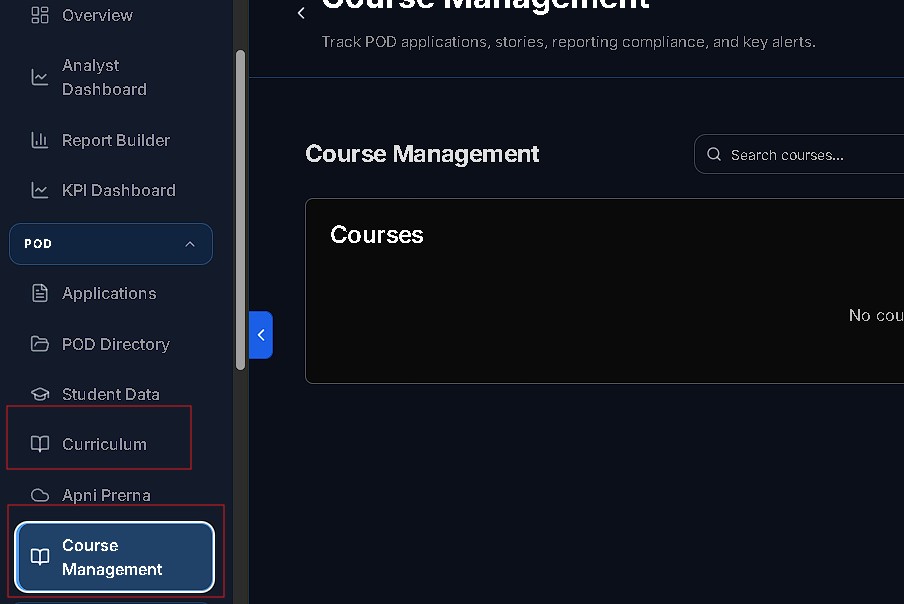
- From the left sidebar navigation under the Pod section, select Course Management or Curriculum.
Available Learning Tracks
Apni Pathshala offers approximately 12 different curriculum options across four core areas:
| Category | Learning Tracks |
|---|---|
| Digital Literacy Foundation | Basic Computer Operations, Internet Safety, Google Workspace. |
| Office Productivity | Touch Typing (English/Hindi), MS Word, Excel, PowerPoint. |
| Creative & Graphic Design | Canva Graphic Design, Basic Video Editing. |
| Advanced & Career Track | AI Tools (ChatGPT, Gemini), Digital Marketing, Govt Exam Prep. |
Workflow 1: Defining & Assigning Courses
Courses are the primary curriculum definitions used for student enrollment and impact reporting.
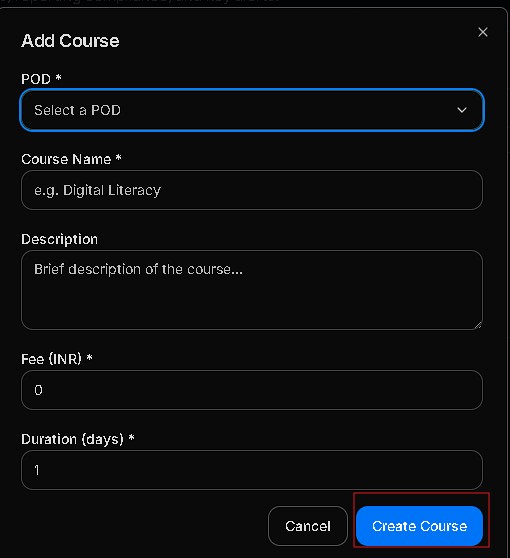
- Add New Course: Go to Course Management and click + Add Course.
- Course Name: Clear and descriptive (e.g., ‘MS Office Basics’).
- Fee: Enter the amount in INR (use 0 if the course is free).
- Duration: Enter the total number of days (must be > 0).
- Assign to Batch:
- Select Assign Course to Batch.
- Identify the POD Name and the specific Batch (e.g., Morning Batch A).
- Choose the Course Module from the catalog.
- Set the Start Date and the Target Completion Date.
- Click Confirm Assignment to automatically update student profiles in that batch.
Workflow 2: Implementing & Tracking Curriculum
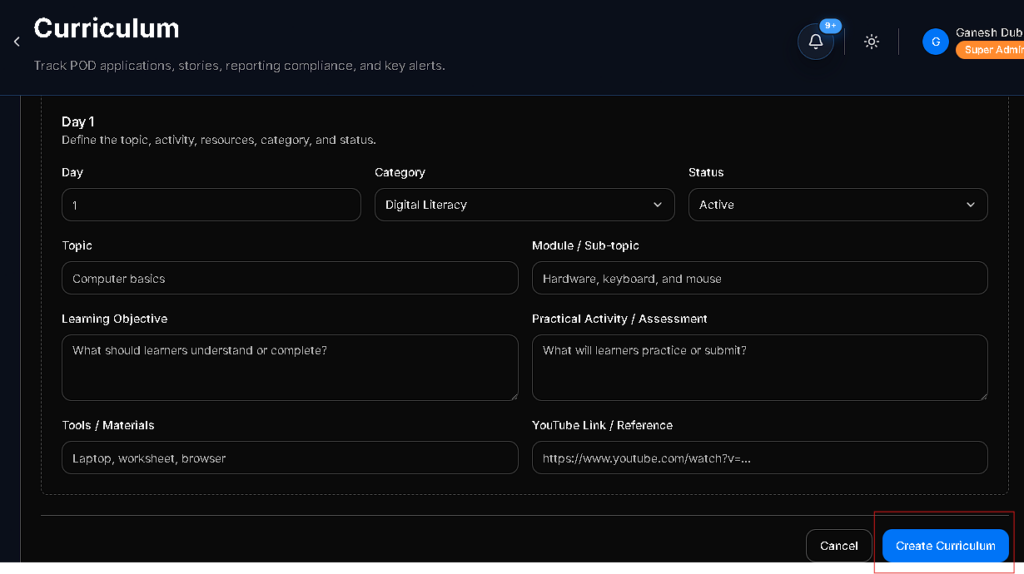
The Curriculum module provides a day-by-day teaching plan assigned by the Apni Pathshala curriculum team.
- Daily Preparation:
- Review the next 5-6 days of the curriculum at the start of each week.
- Check Learning Objectives to ensure you know what students should achieve.
- Review any provided Reference Links (YouTube tutorials, guides) before class starts.
- Tracking Milestones: Navigate to Course Management $\rightarrow$ Course Progress.
- In Progress: Student is actively participating in lessons.
- Assessment Pending: Lessons finished; awaiting practical test score.
- Completed: Final practical test passed with a score > 70%.
- Issuing Certificates: Once a student meets all requirements, click Issue Certificate to generate a digital PDF containing the student’s name and POD details.
Workflow 3: Requesting Materials & Support
If a required curriculum is not currently assigned to your POD, you must request it formally.
- Via Weekly Insights: Use Section 3 (“Curriculum Request / Feedback”) to describe your specific needs.
- Detail Requirements: Specify the course name, number of students, and required format (e.g., Printed Worksheets, LMS Unlocks).
- Resolution: The central team typically reviews and dispatches materials within 3–5 business days.
Common Mistakes to Avoid
- Skipping Prerequisites: Ensure students complete Basic Digital Literacy before moving to AI Tools or Canva.
- Ad-hoc Teaching: Avoid teaching only what you know; follow the day-by-day plan to ensure consistency across PODs.
- Duplicate Entries: Always search for an existing course name before adding a new one.
- Incomplete Records: Certificates cannot be issued without a verified test score recorded in VED.
Support
- Technical Assistance: Use the Request Support Call button on the VED portal.
- Operational Queries: Contact your assigned POD Manager via the Complaints & Issues module.


