
Apni Pathshala VED | POD Leader Guide
Version: v1.0
Target Audience: POD Leaders, Coordinators, & Trainers
Effective Date: Aug 25, 2026
1. Purpose
This Standard Operating Procedure (SOP) provides a comprehensive framework for POD Leaders to effectively manage the student lifecycle within the Apni Pathshala VED ecosystem. This includes registration, profile maintenance, attendance tracking, and synchronization with the ApniPrerna LMS to ensure accurate skill completion records.
2. System Access
To begin managing data, follow these access steps:
- Navigate to the VED Portal: https://ved.apnipathshala.org
- Log in using your authorized credentials at the Login Page.
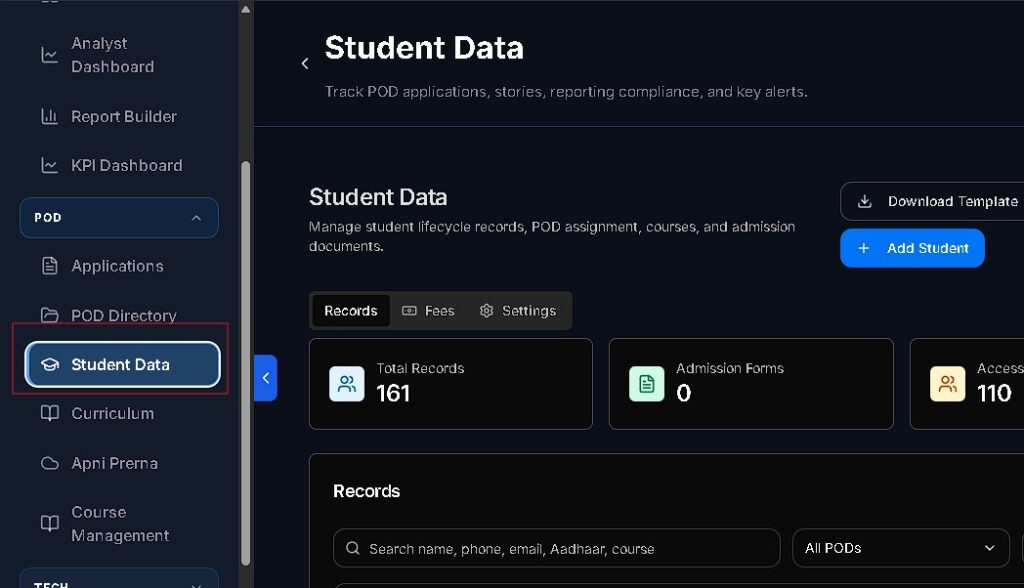
- From the left sidebar navigation, locate the Pod section and click on Student Data.
3. Workflow 1: New Student Enrollment
Accurate data entry during enrollment is critical for long-term tracking and communication.
Enrollment Steps
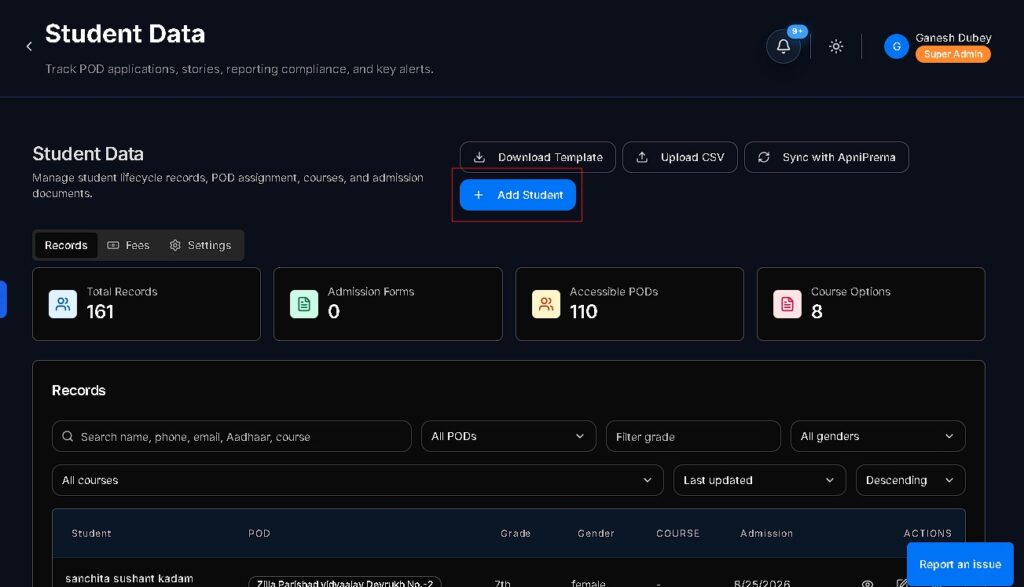
- Click the + Add Student button located at the top right of the Student Data list.
- Complete the modal form with the following required details:
| Field Category | Requirement | Description/Example |
|---|---|---|
| Full Name | Required | Official name (e.g., Pooja Rani) |
| Age / DOB | Required | Birth date or age in years |
| Gender | Required | Male, Female, or Other |
| School Level | Required | Grade or status (e.g., Class 9, Graduate) |
| Guardian | Required | Parent or Guardian name |
| Contact | Required | 10-digit mobile number |
- Course Selection: Check the initial tracks the student will participate in (e.g., Basic Digital Literacy).
- Click Save Student to finalize the record.
4. Workflow 2: Syncing ApniPrerna LMS
ApniPrerna serves as the primary digital learning platform. VED must be synced to reflect real-time progress.
- Open the specific student’s profile from the Student Data table.
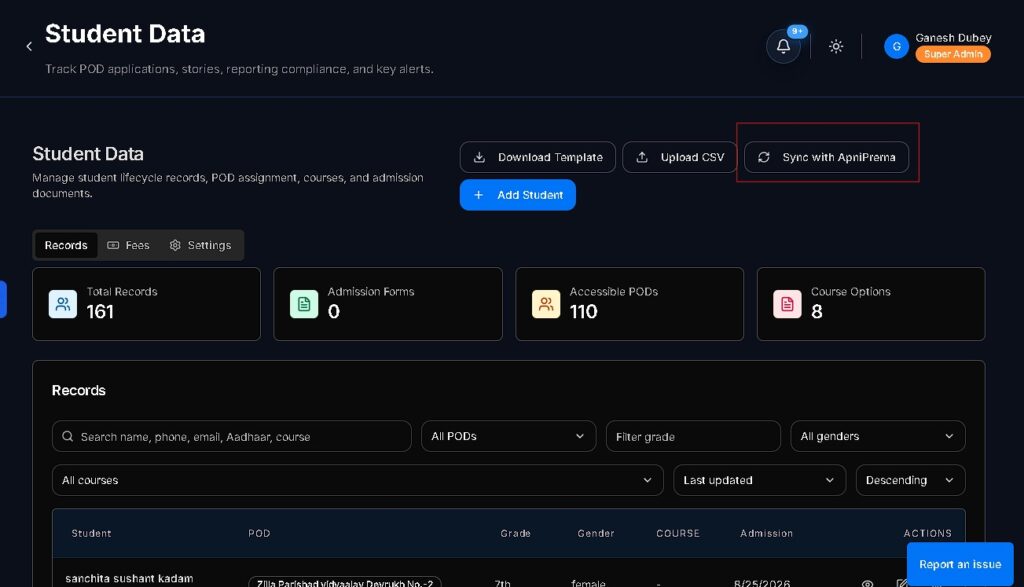
- Click the Sync ApniPrerna Data button in the top right corner.
- Data Verification: The system will automatically pull:
- Real-time module completion status.
- Quiz scores and final assessment grades.
- Total cumulative learning hours.
- If data appears outdated, use the Refresh Sync option to force a manual update.
5. Workflow 3: Progress & Certification
Tracking the transition from learner to certified graduate is essential for impact reporting.
- Navigate to the Courses tab within the student’s profile.
- Select the specific course (e.g., Touch Typing & MS Office).
- Update the Status based on the following definitions:
- Enrolled: Active participation in lessons.
- Completed: All modules and practical assignments finished.
- Certified: Final assessment passed and certificate generated.
- Performance Metrics: Enter technical data such as Typing Speed (e.g., 35 wpm) where applicable.
- Click Save Changes.
6. Data Management Tools
The VED platform provides tools for efficient administrative oversight:
- Search Bar: Quickly locate records by Name, Roll ID, or Phone Number.
- Filters: Segment the student roster by Course, Gender, Age Group, or Enrollment Status.
- Exporting: Use the Export CSV function to download rosters for offline attendance registers or local reporting.
7. Quality Control, Support & Common Pitfalls
Common Mistakes to Avoid
- Entering Duplicate Students: Always search for the student name or phone number before adding a new record to avoid duplicates.
- Incomplete Guardian Contact: Mobile numbers must be valid 10-digit numbers to receive SMS notifications.
- Forgetting to Sync ApniPrerna: Sync student profiles weekly before submitting your Weekly Insights.
Support
- Technical Assistance: Click the “Request Support Call” button on the form.
- Operational Queries: Contact your assigned POD Manager via the Complaints & Issues or Communications modules.


