
Apni Pathshala VED | Standard Operating Procedure
- Target Audience: POD Leaders, Operations Coordinators, Operations Managers, & Website / Technical POM Team
- Platform: Apni Pathshala VED (https://ved.apnipathshala.org)
- Version: v1.0
- Last Updated: Sep 04, 2026
Purpose
This Standard Operating Procedure (SOP) provides POD Leaders, Operations Coordinators, and Technical Team members with a structured framework for logging, categorizing, tracking, and resolving operational and hardware complaints within the Apni Pathshala VED ecosystem. It covers SLA/TAT tracking, evidence uploads, SCOGO field technician dispatches, and bulk complaint imports.
System Access
- Navigate to the VED Login Portal (https://ved.apnipathshala.org/login).
- Log in using your authorized credentials (POD Leader / Admin account).
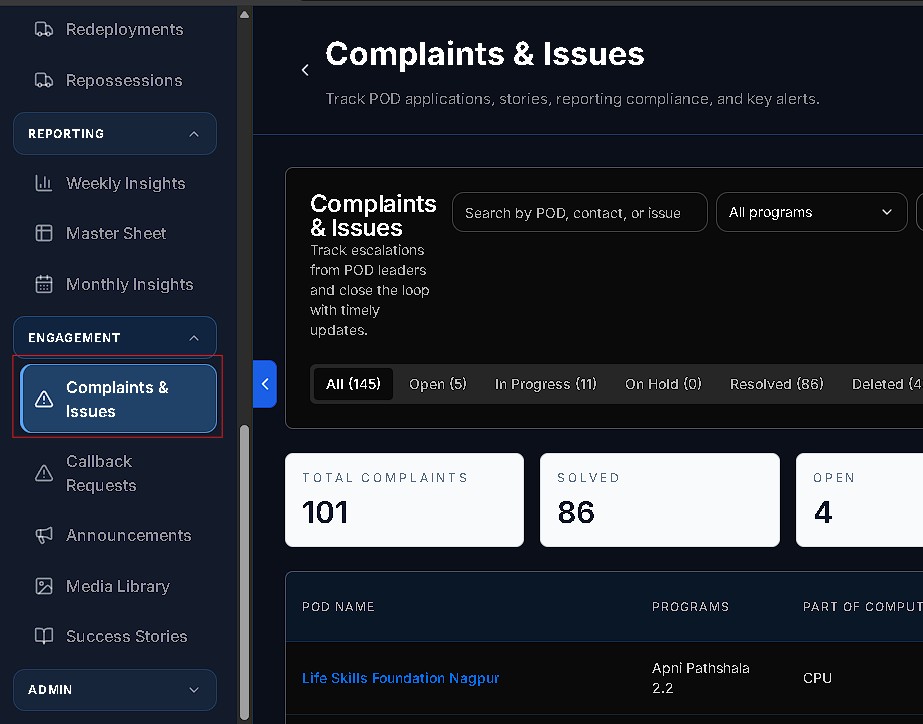
- Locate the Complaints module in the left sidebar navigation under the Operations / Management category.
- Direct URL Path: https://ved.apnipathshala.org/app/complaints
Complaint Classifications & SLA Matrix
The following table outlines the complaint categories, severity levels, target Turnaround Times (TAT), and typical issues logged within VED.
| Category | Severity Levels | Target SLA / TAT | Typical Issues & Equipment Included |
|---|---|---|---|
| OPERATIONS | Low, Medium, High | 24 – 48 Hours | Internet downtime, UPS backup failure, power socket issues, seating arrangements |
| RESOURCES | Medium, High, Critical | 12 – 24 Hours | Hardware failure: CPU, Monitor, Keyboard, Mouse, Webcam, Headphones, Cables |
| STUDENT | Low, Medium | 24 – 72 Hours | Attendance discrepancies, batch assignment errors, learning portal access issues |
| REPORTING | Low, Medium | 48 Hours | Daily report mismatch, KPI data sync delays, dashboard metrics errors |
| OTHER | Low, Medium | 48 Hours | Facility cleanliness, general maintenance, minor administrative queries |
Workflow 1: Logging a New Complaint & Evidence Upload
When a technical fault or operational disruption occurs at a POD, follow these steps to log a formal complaint:
- Access Module: Navigate to Complaints (/app/complaints) and click the + New Complaint button.
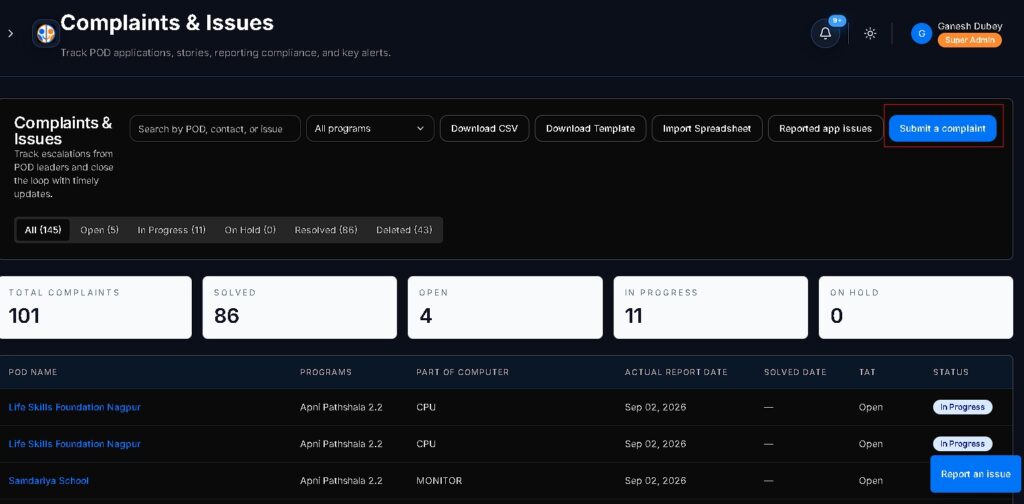
- Select POD & Category: Choose your assigned POD location and select the appropriate category (OPERATIONS, RESOURCES, STUDENT, REPORTING, or OTHER).
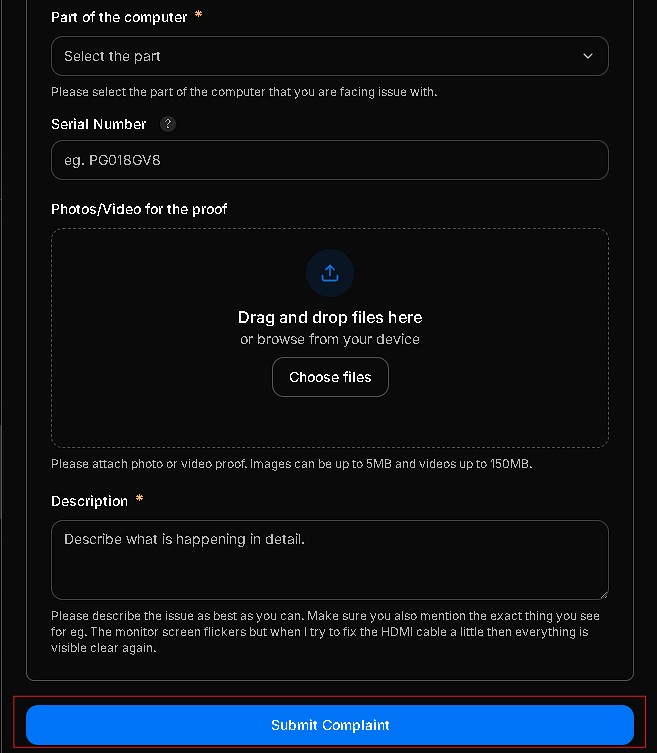
- Specify Hardware (If Applicable): If the issue relates to hardware (RESOURCES), check the specific affected part (CPU, MONITOR, KEYBOARD, MOUSE, WEBCAM, CABLES, HEADPHONE).
- Set Severity: Assign severity (LOW, MEDIUM, HIGH, or CRITICAL) based on operational impact.
- Describe Issue: Provide a concise summary and detailed description (e.g., “Monitor screen flickering continuously during afternoon batch”).
- Upload Visual Evidence: Attach clear photo or video proof (JPEG, PNG, WEBP, PDF up to 10MB) showing the physical tag or defect.
- Submit Ticket: Click Create Complaint. The system generates a unique Ticket ID (e.g., CMP-2026-0892) and notifies the Technical Operations Team.
Workflow 2: Ticket Tracking, Updates & SCOGO Field Dispatch Integration
Track resolution progress and coordinate with field technicians through the active ticket workflow:
- View Ticket Status: In the Complaints list, monitor ticket statuses: OPEN, IN_PROGRESS, ON_HOLD, or RESOLVED.
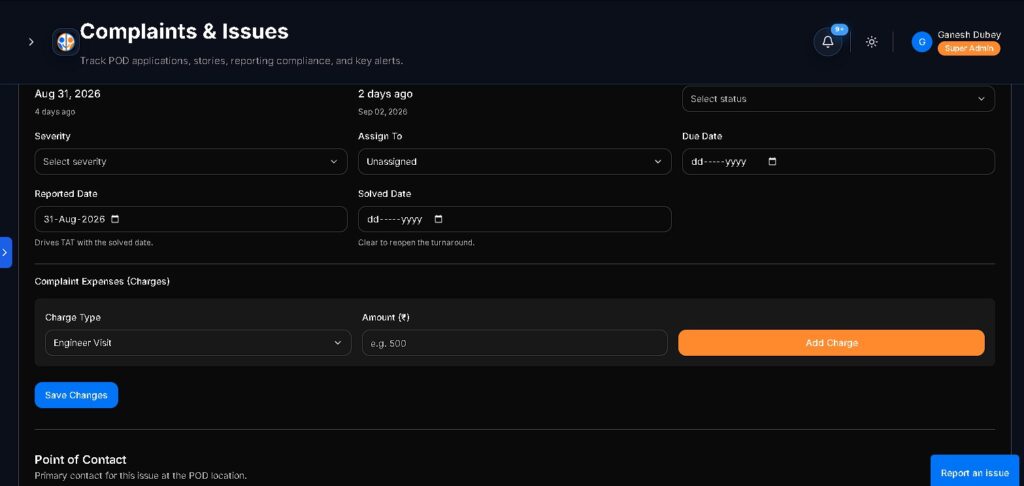
- Post Timeline Updates: Click on any ticket to open the details view. Add internal notes or public updates. Select visibility:
- EVERYONE: Visible to POD Leaders and center staff.
- ADMIN_ONLY: Confidential internal notes for Technical Operations & POM Team.
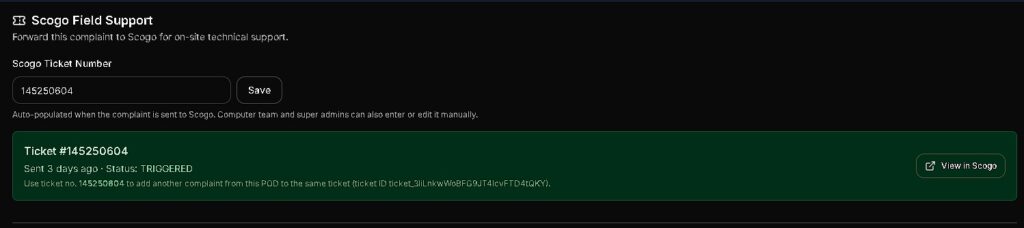
- Escalate to Field Technician (SCOGO Dispatch):
- For hardware issues requiring on-site repair, click Dispatch SCOGO Technician.
- Confirm site contact details, center address, and hardware serial numbers.
- Click Generate SCOGO Ticket. The system synchronizes status updates directly from the SCOGO vendor portal into VED.
Workflow 3: Resolving, Closing, and Bulk Importing Complaints
Complete ticket lifecycles and maintain historical audit records:
- Upload Resolution Evidence: When the issue is resolved on-site, open the ticket and click Mark as Resolved.
- Record Resolution Details: Input resolution notes (e.g., “Replaced damaged HDMI cable with new stock asset #CAB-8821”).
- System SLA/TAT Audit: Upon resolution, VED automatically calculates exact Turnaround Time (TAT) against the SLA benchmark.
- Bulk Import Complaints (Admin / Operations):
- For offline logs or batch updates, click Import CSV.
- Download the official CSV template (COMPLAINT_IMPORT_TEMPLATE_CSV).
- Fill in POD keys, titles, categories, severities, and timestamps.
- Drag and drop the CSV file into the importer and click Validate & Import.

Best Practices & Operational Guidelines
- Immediate Logging: Always log hardware and internet failures within 30 minutes of occurrence to prevent SLA penalties.
- Clear Evidence: Ensure hardware serial stickers and defect areas are clearly readable in attached photographs.
- Accurate Categorization: Never mark minor queries as CRITICAL; reserve CRITICAL for complete center outages or severe safety hazards.
- Daily Review: POD Leaders must review all OPEN and IN_PROGRESS complaints during morning alignment.
Support & Assistance
- Technical POM Escalations: Coordinate directly with the Website & Technical Operations POM Team for unresolved SCOGO tickets or SLA breaches.
- Portal Support: Use the Request Support Call button on the VED dashboard for urgent platform issues.


