
Apni Pathshala VED | Standard Operating Procedure
Target Audience: POD Leaders, Coordinators, & Trainers
Platform: Apni Pathshala VED (https://ved.apnipathshala.org)
Version: v1.0
Last Updated: Aug 25, 2026
Purpose
This Standard Operating Procedure (SOP) provides POD Leaders with a structured framework for managing physical inventory, inspecting hardware, reporting damages, recording shipments, and conducting regular asset audits within the VED ecosystem.
System Access
- Navigate to the VED Login Portal (https://ved.apnipathshala.org/login).
- Log in using your authorized credentials.
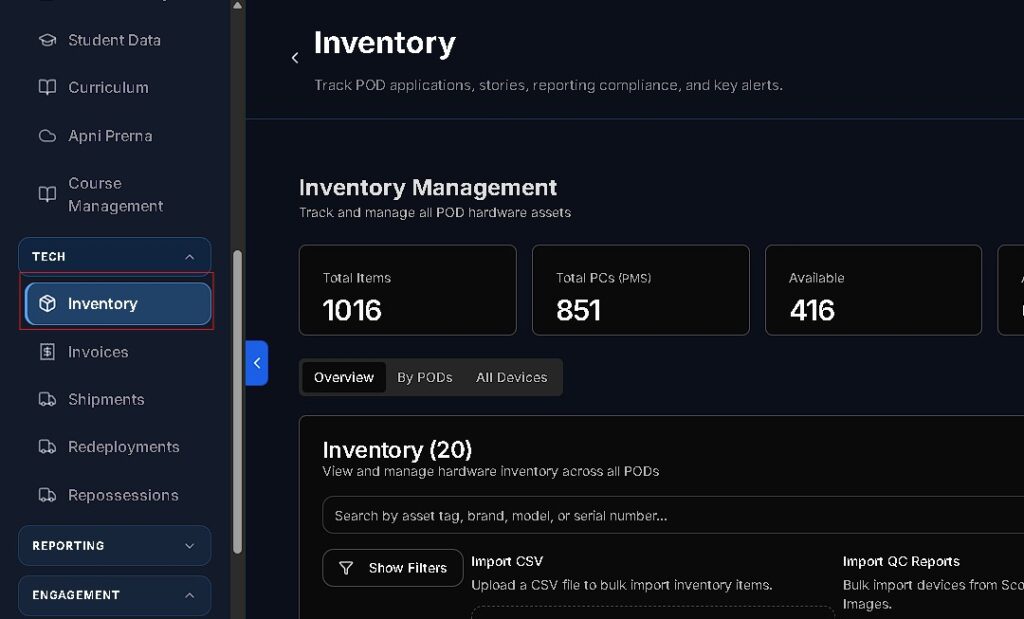
- Locate the Inventory module in the left sidebar navigation under the Tech category.
Inventory Classifications
The following table outlines the specific categories tracked within the VED platform that POD Leaders are responsible for maintaining.
| Category | Typical Items Included |
|---|---|
| Computing Hardware | CPUs, Monitors, Keyboards, Mice, Headphones, Webcams |
| Power & Network | Main UPS Units, Extension Boards, Wi-Fi Routers, Ethernet Cables |
| Facility Furniture | Tables, Chairs, Whiteboards, Storage Cabinets |
| Learning Materials | Printed Worksheets, Textbooks, Stationery Kits |
Workflow 1: Monthly Inventory Audits
POD Leaders must conduct a full audit of all physical assets once per month to ensure data accuracy.
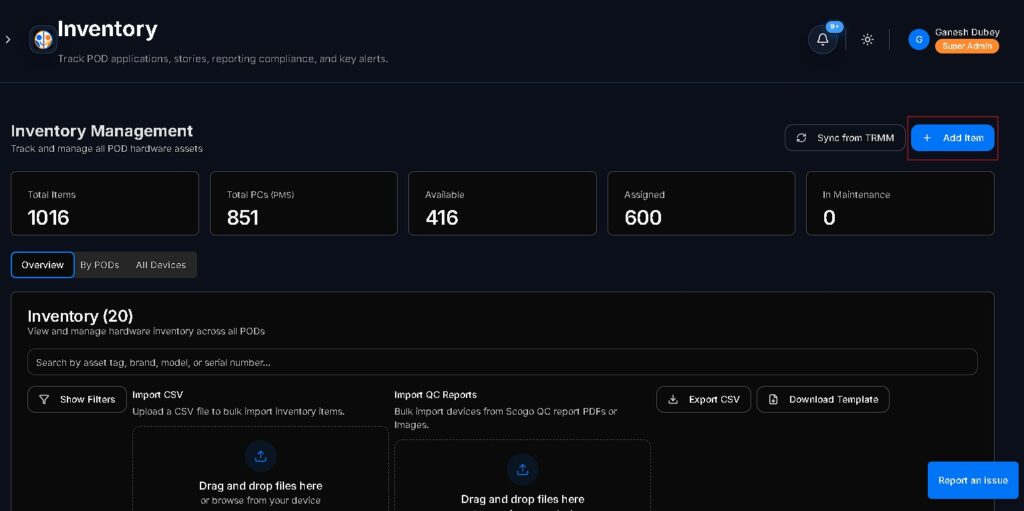
- Access Audit: Navigate to Inventory (/app/inventory) and click Start Monthly Audit.
- Asset Verification: For every item listed, perform the following:
- Condition Check: Assign status as Working, Minor Fault, or Non-Functional.
- Tag Verification: Cross-reference the physical sticker (e.g., MON-POD12-04) with the ID in VED.
- Serial Updates: Record serial numbers for any newly assigned or replaced equipment.
- Discrepancy Reporting: If items are missing or damaged, select the appropriate status and provide a concise note (e.g., “Mouse cable damaged by rodents”).
- Finalization: Click Submit Inventory Audit to lock the records for the month.
Workflow 2: Receiving Shipments & Evidence Upload
When new equipment or replacements arrive, follow these steps to ensure proper asset onboarding.
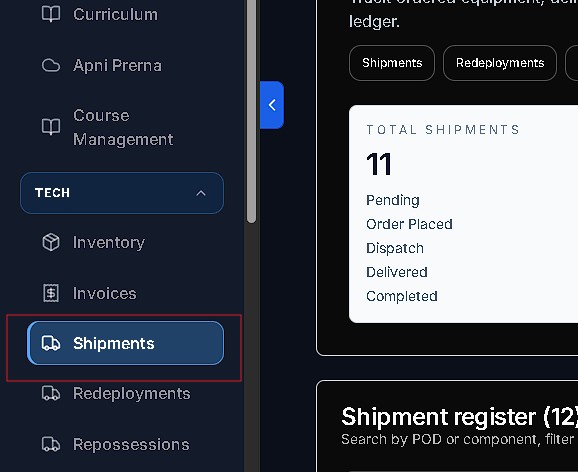
- Locate Shipment: Navigate to Shipments (/app/shipments) and select the entry matching your tracking number.
- Preliminary Inspection: Inspect the external boxes for seal tampering or transit damage before opening.
- Visual Documentation:
- Unboxing Video: Record a continuous video showing the seal being broken and the initial equipment inspection.
- Photography: Capture clear photos of the serial numbers printed on the boxes.
- Confirmation: Click Confirm Delivery Received and upload the video alongside the signed Delivery Receipt (QC Document).
- Auto-Update: The system will automatically move these items into your active POD Inventory.
Workflow 3: Reporting Damage & Replacements
If hardware fails during daily operations, initiate a report immediately.
- Select Item: In the Inventory tab, click on the specific item needing attention.
- Initiate Report: Click Report Damage.
- Damage Specification:
- Type: Select from options like Cable Snapped, Screen Cracked, Liquid Spill, etc.
- Request Type: Choose between Repair Request or Replacement Request.
- Evidence: Upload a clear photograph of the damaged component.
- Ticketing: Submission will automatically generate a Complaint Ticket for the Technical Team.
Best Practices & Safety Guidelines
- Daily Shutdown: Confirm that all CPUs, monitors, and UPS units are powered off before leaving.
- Cable Management: Use zip-ties to keep cables organized and off the floor to prevent tripping or damage.
- Workstation Environment: Maintain a strict “No Food or Drinks” policy at computer stations.
- Dust Prevention: Utilize dust covers at the end of each day to prolong equipment lifespan.
Support & Assistance
- Technical Assistance: Use the Request Support Call button on the VED portal dashboard.
- Operational Queries: Contact your assigned POD Manager via the Complaints & Issues module.


