
POD Leader Guide | Apni Pathshala VED
Version: v1.0
Target Audience: POD Leaders, Coordinators, & Trainers
Platform: Apni Pathshala VED
Purpose
This Standard Operating Procedure (SOP) provides a structured framework for POD Leaders to log hardware issues, internet outages, electrical failures, and software errors. It ensures efficient tracking of repair statuses, standardized evidence submission, and immediate access to callback support from the central tech team.
System Access
- Login: Navigate to the VED Login Page.
- Navigation: Locate the left sidebar. Under the Engagement section, click Complaints & Issues.
- Initiate: Click the + New Complaint button situated at the top right of the dashboard.
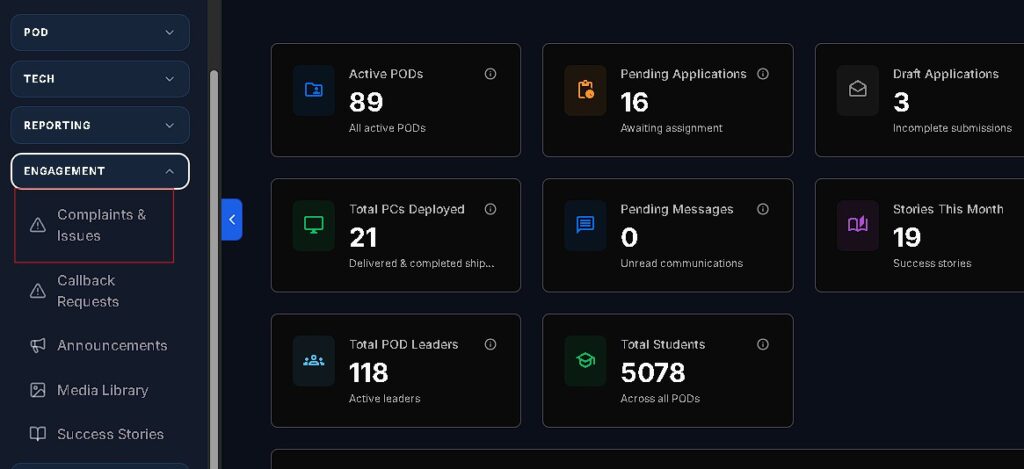
Workflow 1: Logging a New Complaint Ticket
When a technical issue arises, follow these steps to ensure the central team has sufficient data for a resolution.
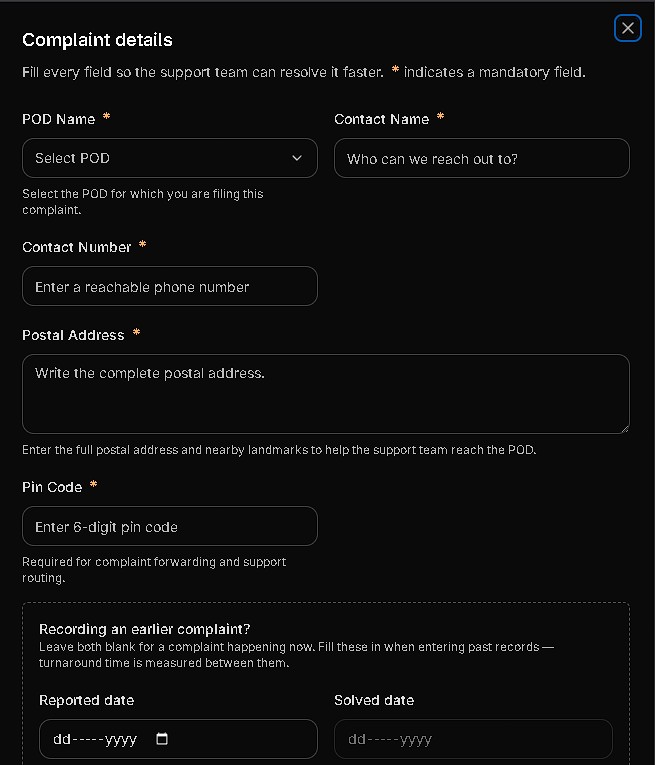
Field Definitions & Requirements
| Field Name | Requirement | Description / Examples |
|---|---|---|
| POD Name | Required | Automatically populated based on your assigned POD. |
| Complaint Category | Required | Select from: Hardware, Network, Power, Software, or Facility. |
| Affected Asset ID | Required | Specify the exact ID (e.g., PC-03, Main Router #1). |
| Priority Level | Required | Categorize as Low, Medium, High, or Critical. |
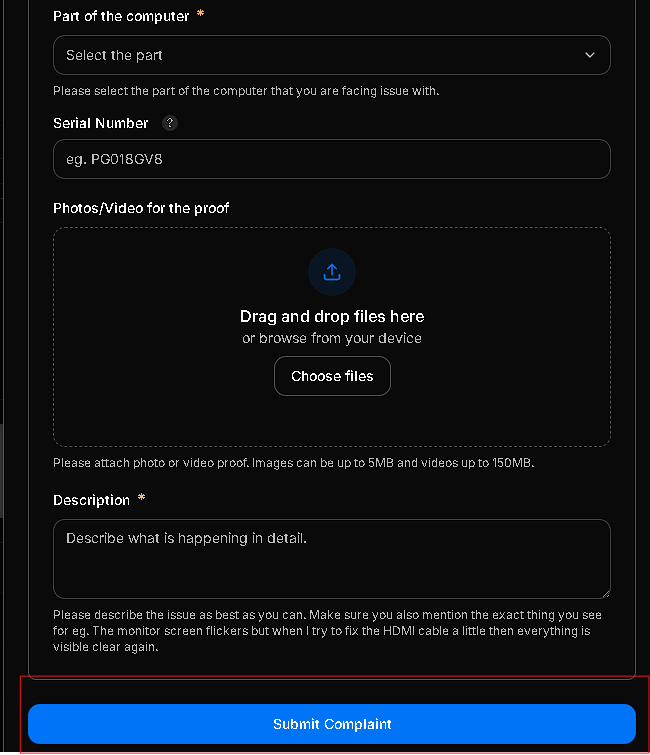
| Evidence Upload | Required | Attach 1–3 photos or a short video (under 50 MB). |
Detailed Instructions
- Identify the Issue: Determine the correct category.
- Hardware: Boot failures, peripheral damage, sound issues.
- Network: No internet, slow connectivity, router failures.
- Power: UPS battery issues, socket damage, voltage tripping.
- Software: OS errors, LMS login failures, missing curriculum apps.
- Assign Priority:
- Low: Minor issues that do not stop class (e.g., sticky mouse).
- Medium: Single station down in a functional room.
- High: Multiple stations down or intermittent internet.
- Critical: Entire POD is non-functional (e.g., main UPS failure).
- Title & Description: Provide a concise title and a detailed description of troubleshooting steps already taken (e.g., “Replaced VGA cable, issue persists”).
- Submit: Click Submit Complaint Ticket to enter the request into the queue.
Workflow 2: Requesting an Immediate Support Callback
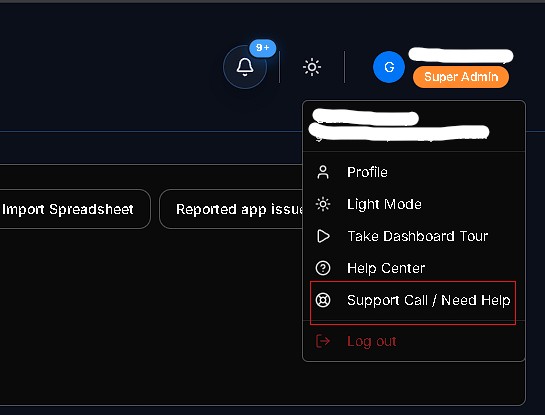
For urgent disruptions during active class hours that require live assistance:
- Locate the Request Support Call button (highlighted in red) in the top header of the Complaints page.
- Click the button to open the request overlay.
- Select the Call Subject (e.g., Urgent Hardware Breakdown).
- Verify your phone number and click Request Callback Now.
- Response Time: The central support team will alert a technician to call you back within 30–60 minutes.
Workflow 3: Tracking & Resolution
All submitted tickets can be monitored through the Complaints & Issues list view.
- Status Indicators:
- OPEN: Ticket queued for review.
- IN PROGRESS: Technician is actively investigating.
- PENDING: Waiting for parts or third-party vendors (ISP).
- RESOLVED: Fix confirmed by the tech team.
- Closing the Loop: Once the issue is physically fixed at the POD, open the digital ticket and click Mark as Resolved to clear it from your dashboard.
Integration with Weekly Insights
To maintain data accuracy, link your complaints to your weekly reporting:
- In the Weekly Insight report, navigate to Section 3: PC Complaints?.
- Select YES.
- Choose the relevant open ticket from the dropdown menu to link the records.
Quality Control & Best Practices
To ensure the fastest resolution times, avoid these common errors:
- Missing Asset IDs: Never simply state “The computer is broken.” Always use the specific tag (e.g., PC-09).
- Insufficient Evidence: Photos allow technicians to bring the correct spare parts on their first visit. Tickets without photos will face delays.
- Stale Tickets: Failure to mark a ticket as “Resolved” inflates your POD’s error metrics and may prevent new tickets from being prioritized.
Support & Escalation
- Technical Assistance: Use the “Request Support Call” feature in the VED portal.
- Operational Queries: Contact your assigned POD Manager: Person.
- Escalation Date: Date


