Introduction
You switch on your computer, and suddenly something feels wrong.
The screen stays black.
The keyboard doesn’t respond.
Or the system simply refuses to start.
At that moment, most people panic. Some feel angry, some feel helpless, and many don’t know who to ask for help. This happens because when we buy a computer, we think only about using it, not what to do when something goes wrong.
The truth is, computer problems are common. Every computer faces issues at some point. What matters is knowing the right way to handle the problem.
At Apni Pathshala, we support hundreds of Digital learning centres called Learning PODs across India. Our POD leaders and teachers get direct guidance from our team whenever a computer has an issue. But we also believe that every user should understand this process, not just POD members.
If you follow this guide properly, most Computer Complaints can be resolved faster and with less stress.
You may want to:
- Bookmark this blog
- Share with yourself or Save it for later
- Or take screenshots to remember the steps
So relax. Let’s start step by step.
1. Start by Understanding the Problem Calmly
The first thing you should always do is slow down and observe. Most computer issues look scary at first, but many are small problems that can be solved easily.
Ask yourself what exactly is happening. Is the computer not turning on at all, or is it turning on but the screen is blank? Is only the keyboard or the mouse not working? Is the screen flickering or showing strange lines?
Before complaining, try simple checks. Restart the system once. Verify that all cables are securely connected. If possible, connect the monitor, keyboard, or mouse to another working system and see if they function there.
These small checks help you understand whether the issue is serious or just a temporary error. If the problem still exists after checking, note it down clearly in your phone or notebook. A clear understanding of the issue always leads to faster support.
2. Highlighting the Problem Makes Solutions Simpler
Once you know what the issue is, the next step is to highlight the problem clearly. This is where many people make mistakes by only explaining in words.
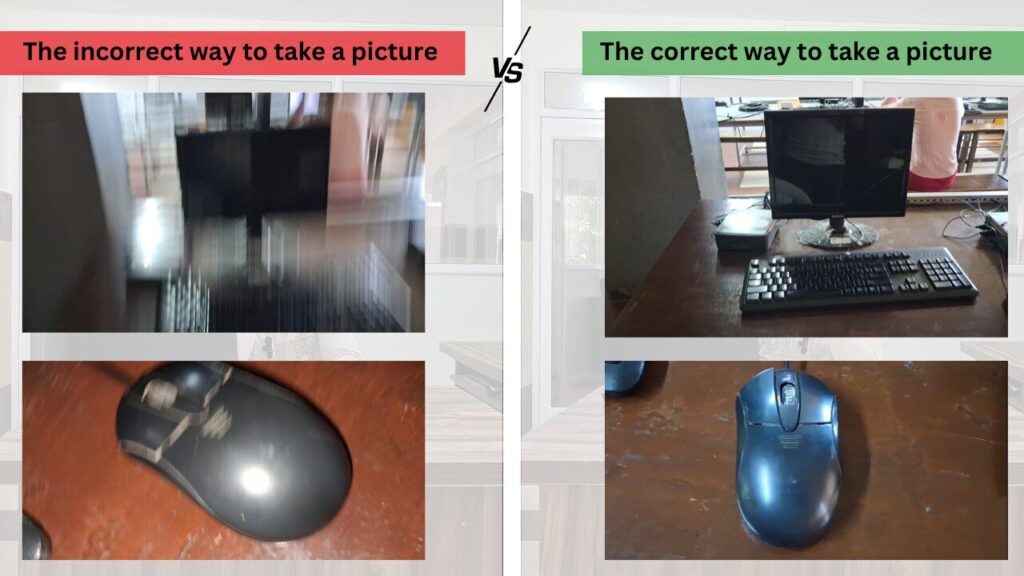
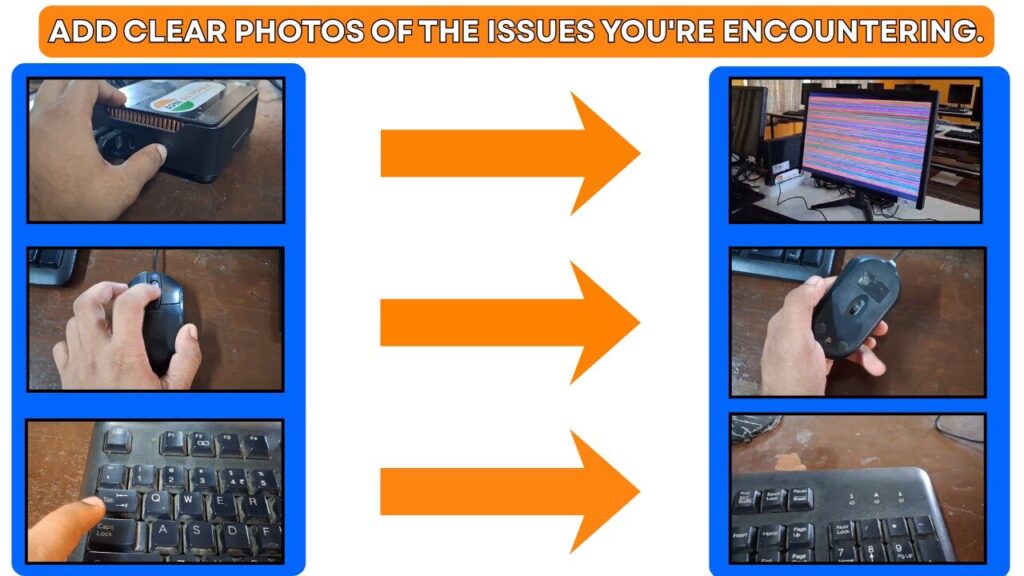
Support teams cannot see your computer from far away. That’s why photos and videos are extremely helpful.
Take a short video of about 20 to 40 seconds.
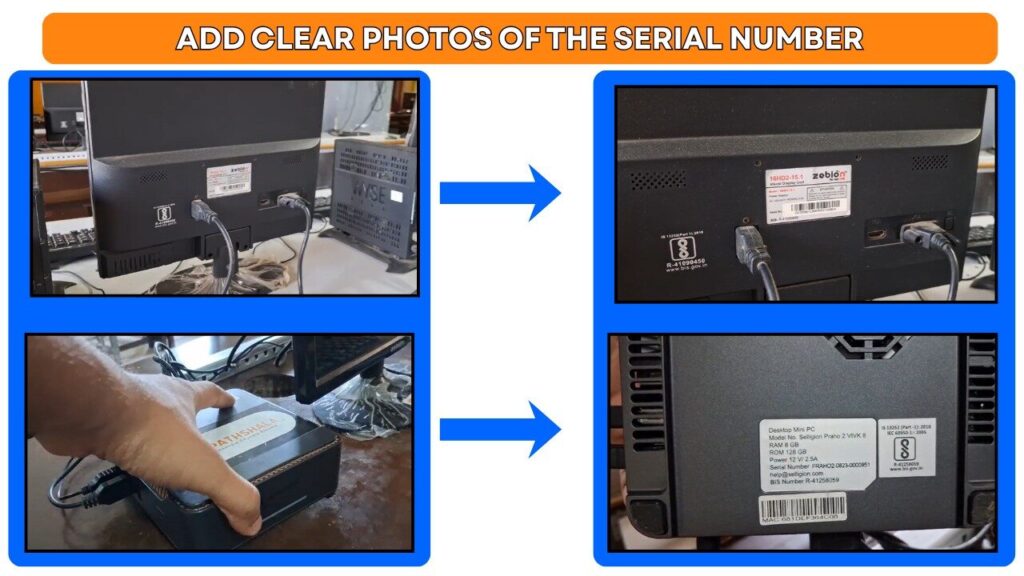
In the video, show whether the computer is turning on or not, what exactly is not working, and the full setup of the device. If possible, also show the serial number of the faulty part.
For example, you can show that the CPU is on but the monitor remains black, or that the keyboard keys are not responding even after changing the port. A clear visual explanation saves time and avoids confusion.
You can save your computer before it’s broken. Read this blog: How to Care for Your PC.
3. Knowing Where to Raise the Complaints
After understanding the problem and capturing it on camera, the next step is knowing where to send your complaint.
Every computer has a service provider. If you are part of an Apni Pathshala Learning POD, computer-related complaints should be sent to [email protected]. This is the official support email for POD computer issues.
If you are not part of a POD, check the company website from which the computer was purchased. Look for the “Contact Us” or “Support” page and find the correct email or helpline.
Always make sure you contact the official support channel, not random phone numbers or shops.
4. Explaining the Problem Clearly Through Email
Email is the safest and most effective way to raise a complaint. It allows you to explain the issue calmly and keeps a record of your communication.
You don’t need perfect English. You only need clarity.
In your email, mention who you are, where you are from, what device is not working, and what problem you are facing. Attach the photos or video you recorded earlier.
After sending the email, wait for confirmation that your complaint has been registered. You can also politely ask for a complaint number or ticket number. This helps you track the issue later if needed.
5. Stay Connected During the Resolution Process
Once your complaint is registered, the support team will contact you. At Apni Pathshala, our team guides POD leaders step by step and, when required, sends engineers to the POD location for repair or replacement.
When the team contacts you, listen carefully and follow the instructions they give. They may ask for more details or suggest small checks. Clear communication helps the issue get resolved faster.
6. Always Confirm After the Issue Is Solved
After the computer is repaired or replaced, do not stop communication immediately. Use the system properly for some time and check whether everything is working as expected.
Once you are sure, reply to the support email and confirm whether the issue is fully resolved or not. This helps close the complaint properly and avoids future confusion.
How to Write a Computer Complaints Email
- Use a clear subject line
Always mention that it is a hardware or computer complaint. Add your POD name or your name so the team can identify you quickly. - Write politely and clearly
Start with a simple greeting. You don’t need long explanations; just be respectful and direct. - Share complete POD or personal details
Mention the POD/organisation name, full address, contact person, and phone number. This helps the support team reach you without delay. - Explain the problem briefly
Describe what is not working in simple words. Mention how many systems are affected and clearly write the serial number for each item. - Attach proof of the issue
Add clear photos of the serial number label and a short video showing the problem. If files are large, upload them to Google Drive and share the link. - Ask for confirmation and support
End email asking for early resolution. Keep the tone calm and cooperative. - Always keep a copy
Save the sent email or take a screenshot. This helps you track the complaint if follow-up is needed.
Bonus – Here’s an Email Template You Can Use –Click Here!
Conclusion
Computer problems can feel stressful, especially when you don’t know who to contact or what to say. But now, you do.
This blog is written to guide everyone, POD leaders, teachers, NGOs, schools, and even individuals, on what to do when a computer stops working.
From understanding the issue, capturing it properly, raising a complaint, writing the right email, to following up on every step matters.
If you’re part of an Apni Pathshala Learning POD, this process helps our team and Scogo engineers resolve issues faster and more smoothly.
If you’re not, you can still use this guide to raise complaints with any computer service provider clearly and professionally.
If you are a POD leader, teacher, or coordinator and have more questions like this, check out our POD Operating Manual to get your answers quickly.
If you want to Learn more:
- Read What is Apna PC to know how our systems are built for learning
- Explore What Makes Self-Learning Safe to see how we protect students online
- If you want to support your community, visit Start a POD
It’s not about problems;
It’s about how we handle them.